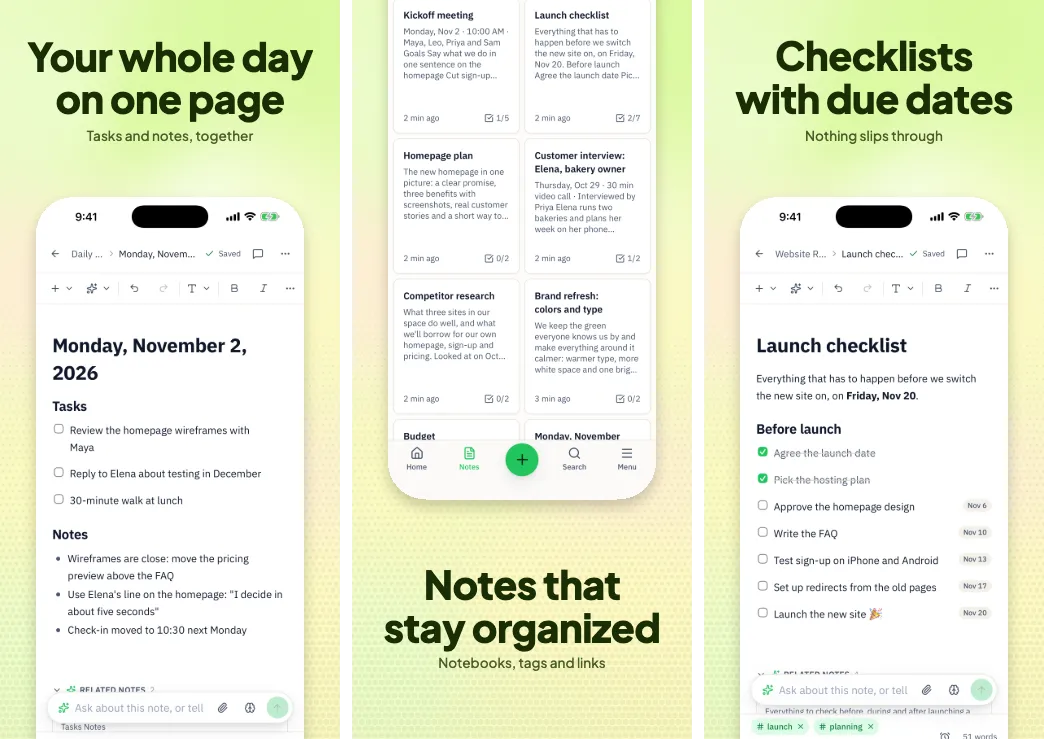
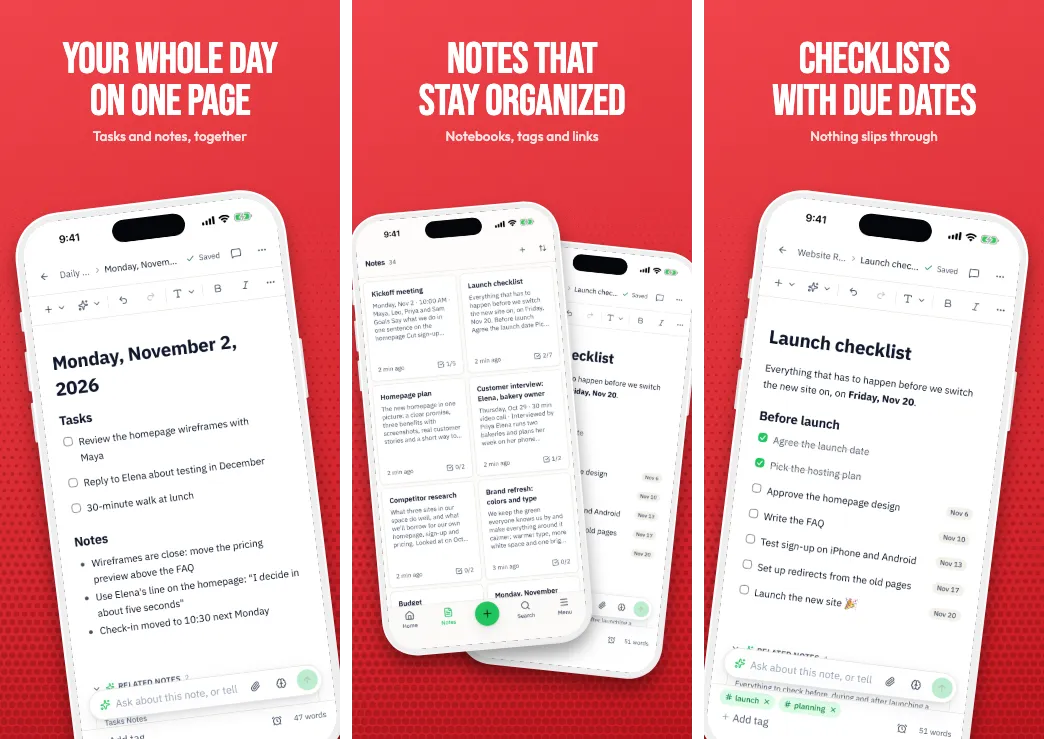
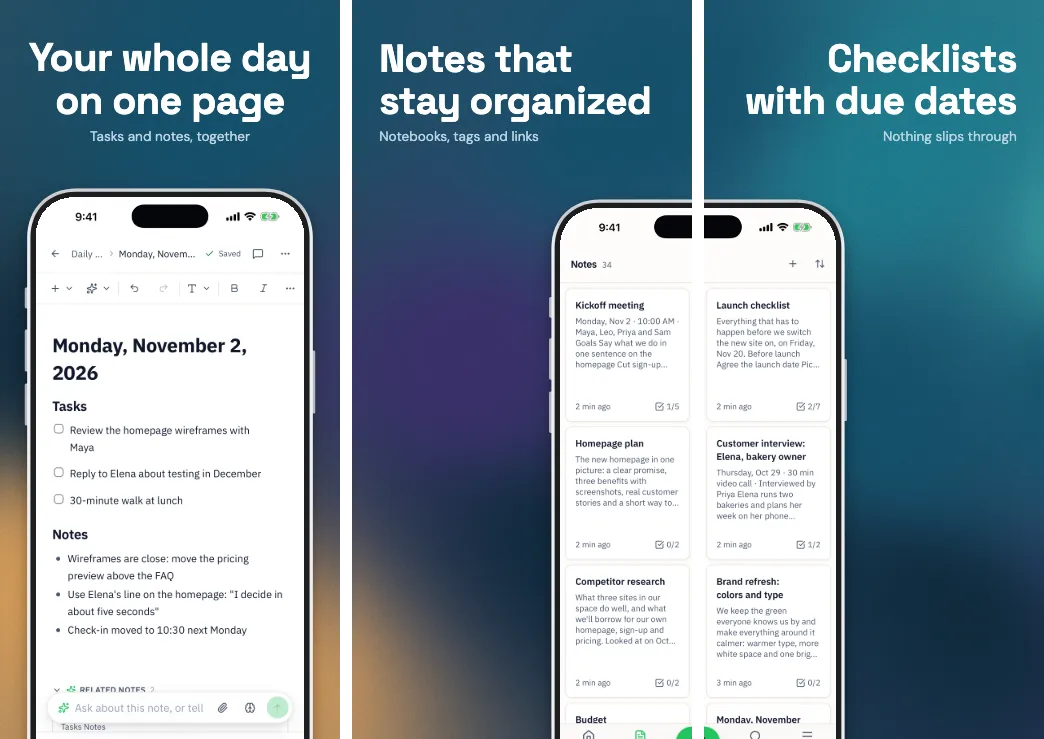
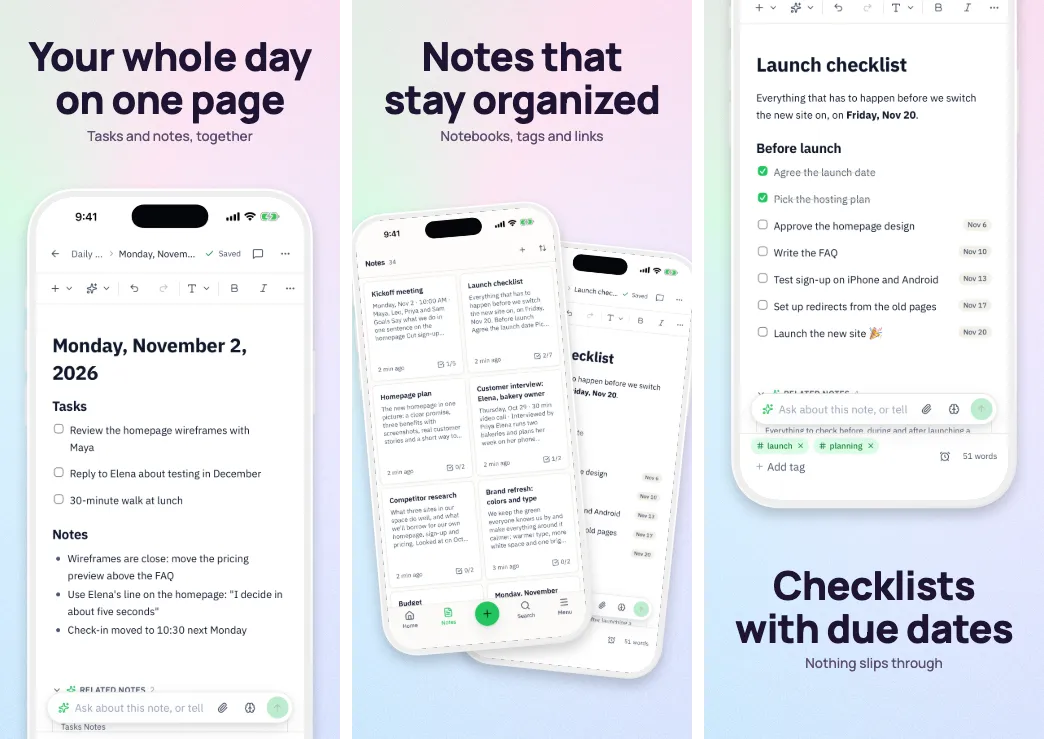
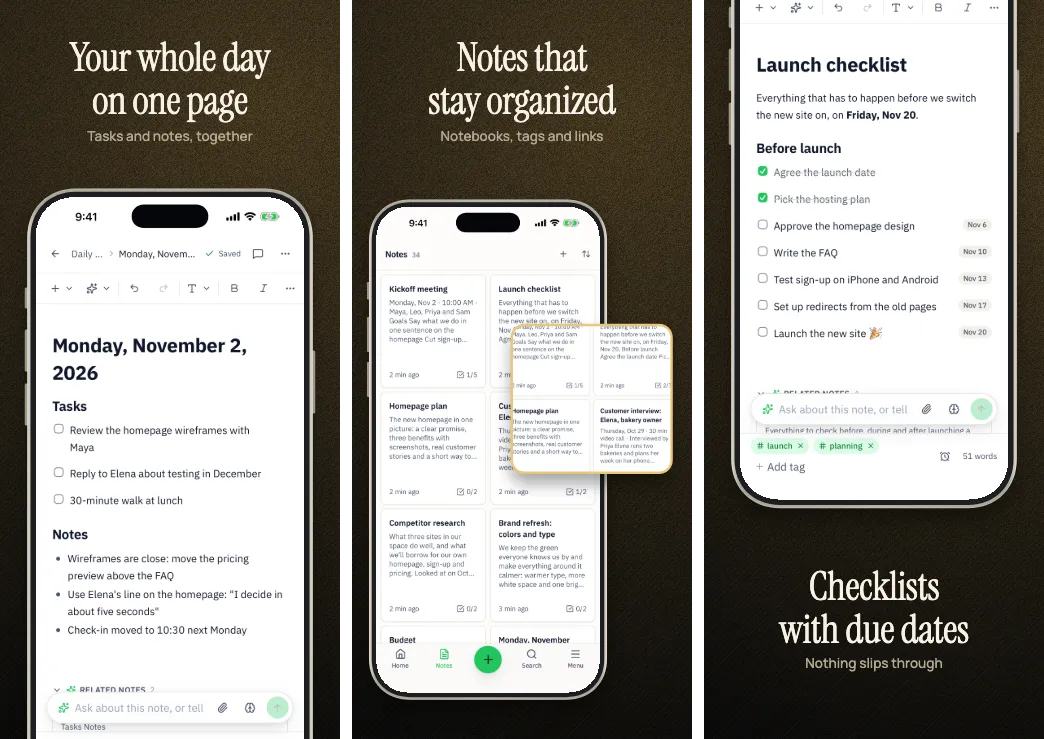
App Store screenshots,
made together.

Work on one live canvas with your team and pin comments right on the screens. Translate captions and screenshots into 84 languages. Let AI read your app and write the headlines. Then export the exact sizes the App Store and Google Play take.

No card to start · Sign in with Google or email · Runs in your browser on a computer

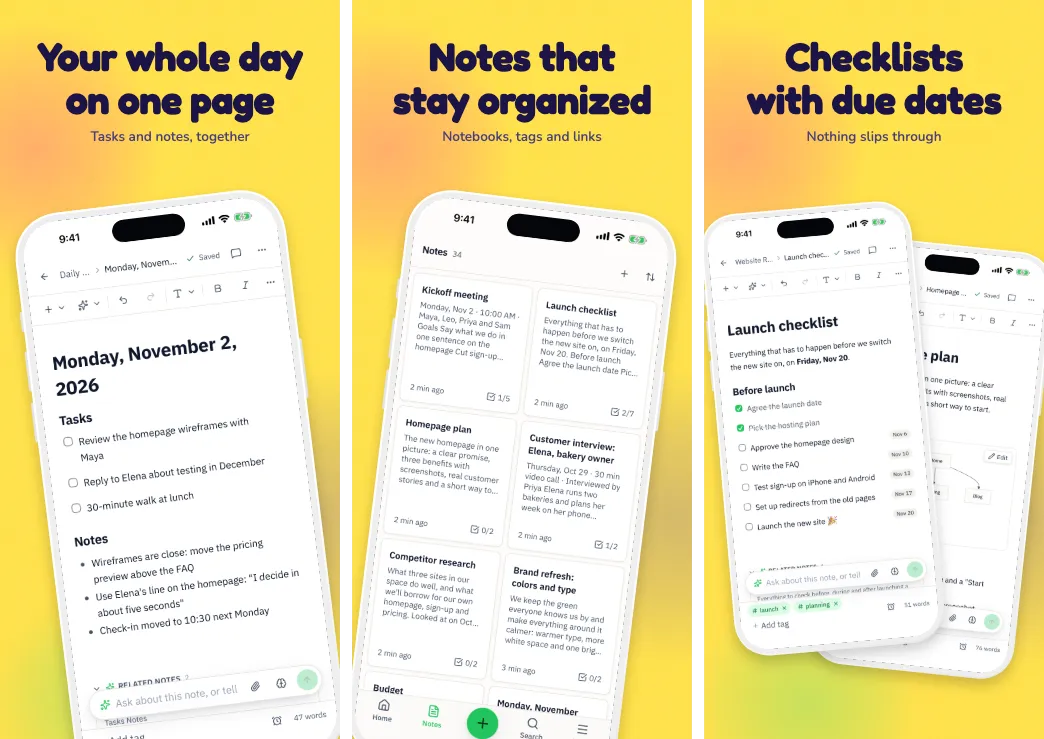
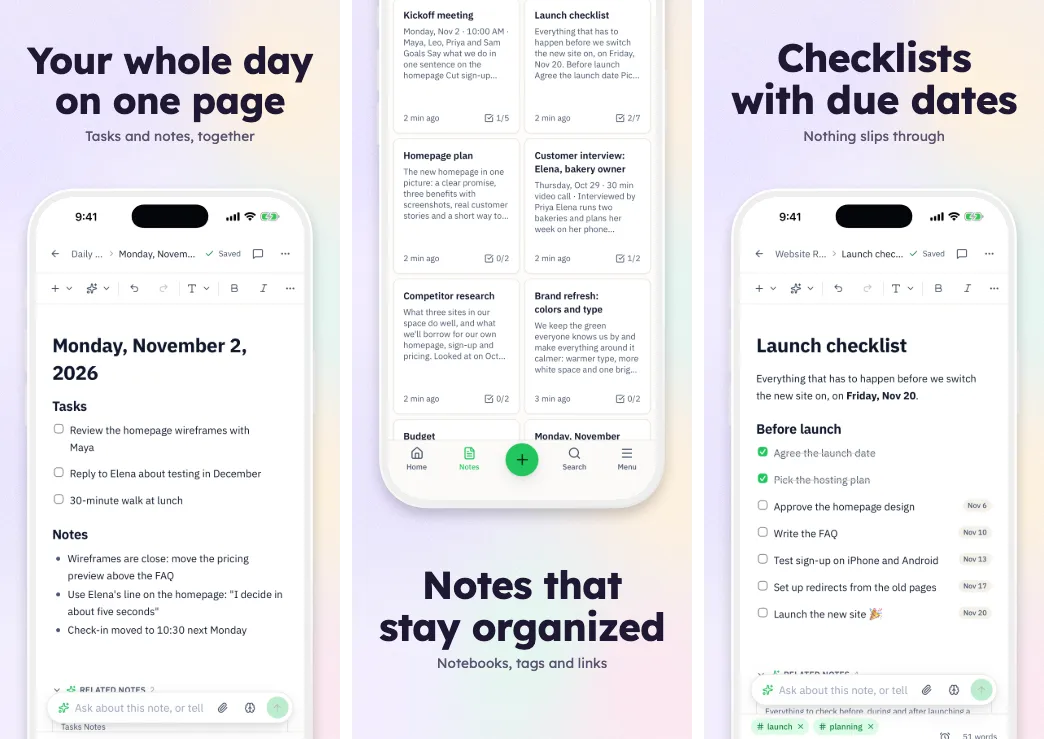
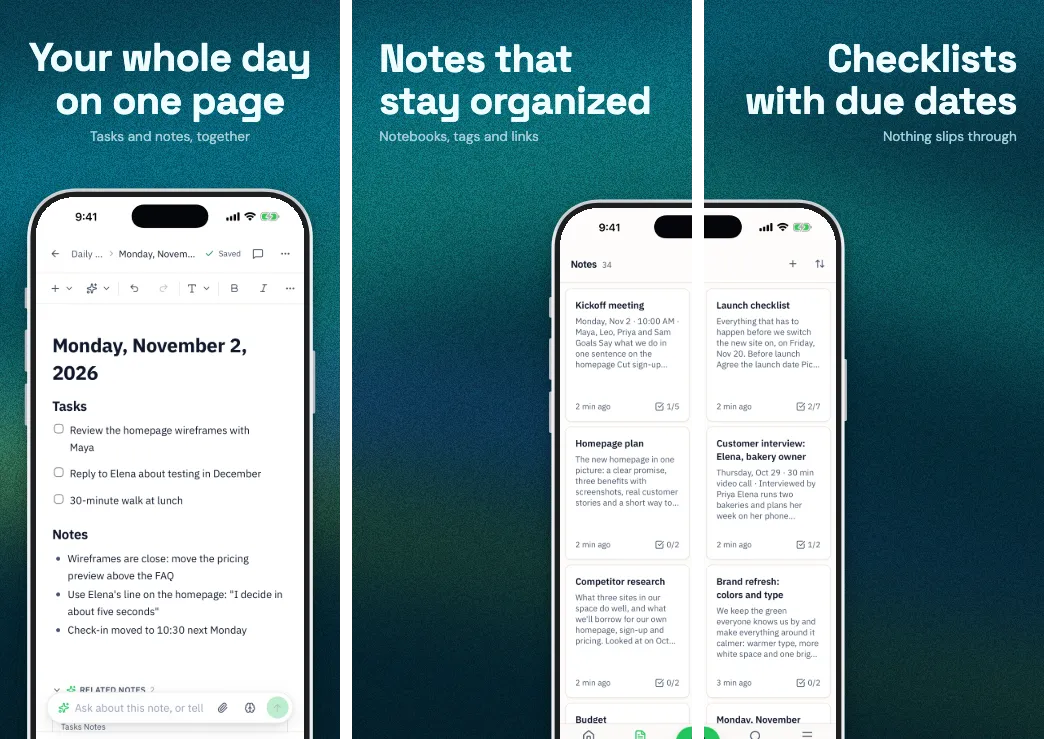
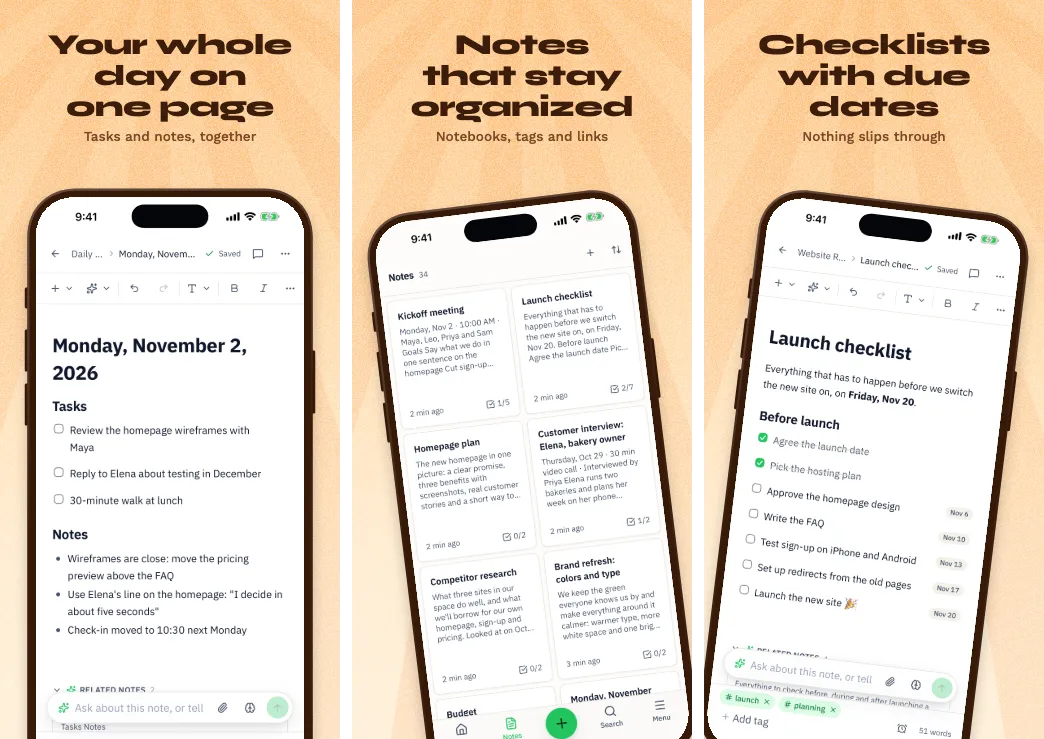
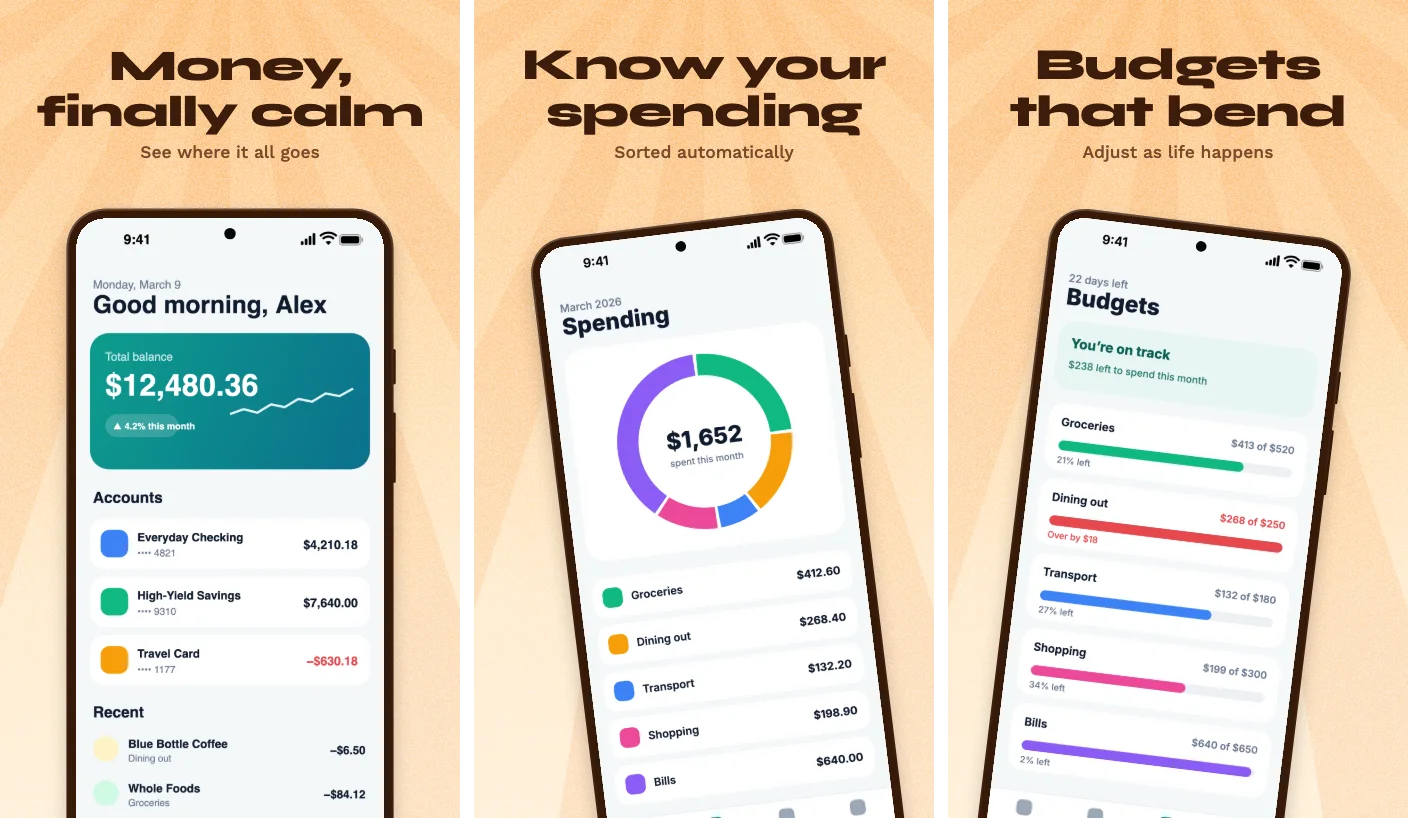
A finished App Store screenshot with a tilted phone on a bright yellow background.
The Appscreensii editor with three people in one project: a comment thread pinned to a headline with an at-mention, the comments panel on the left, and other people's cursors on the canvas.
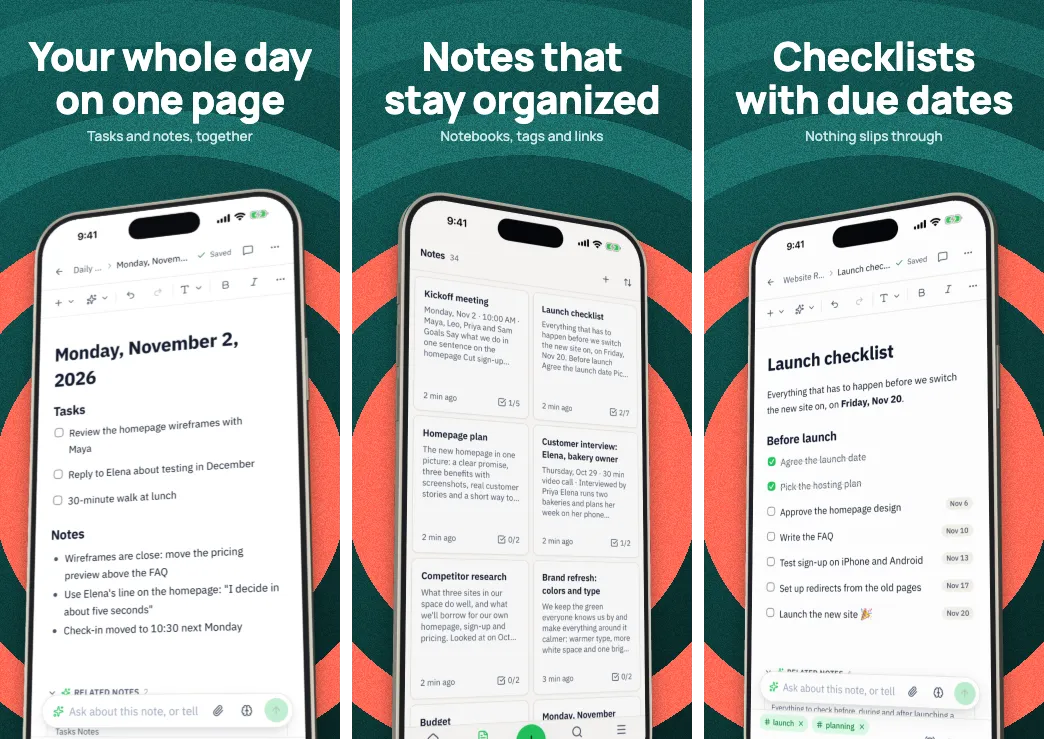
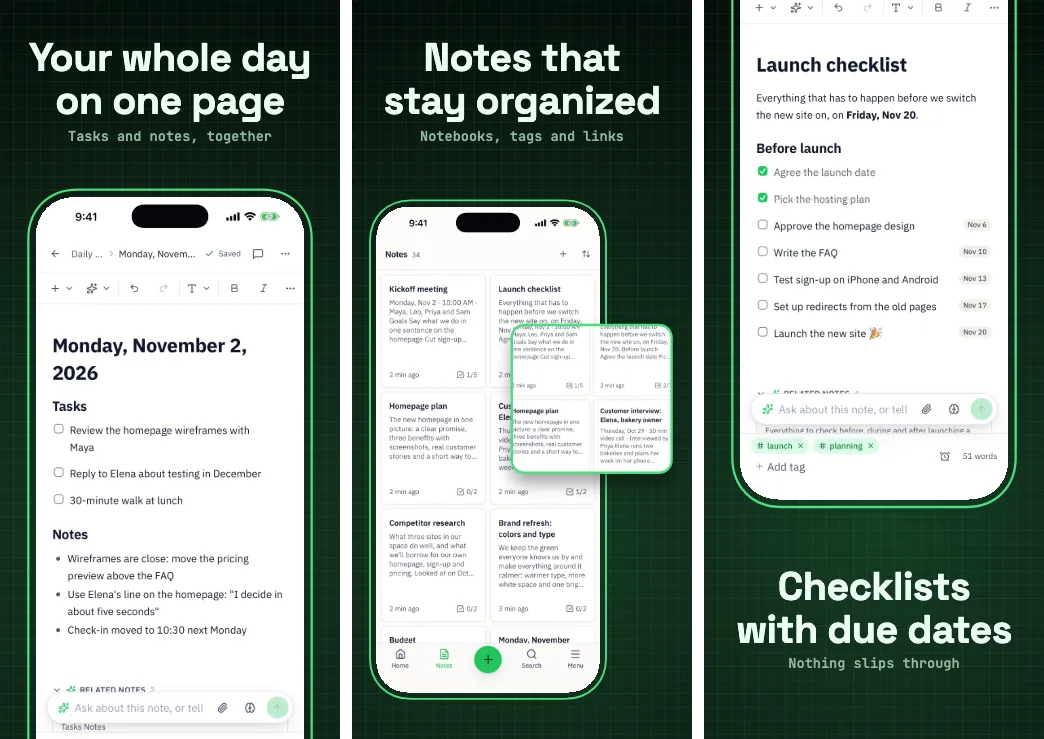
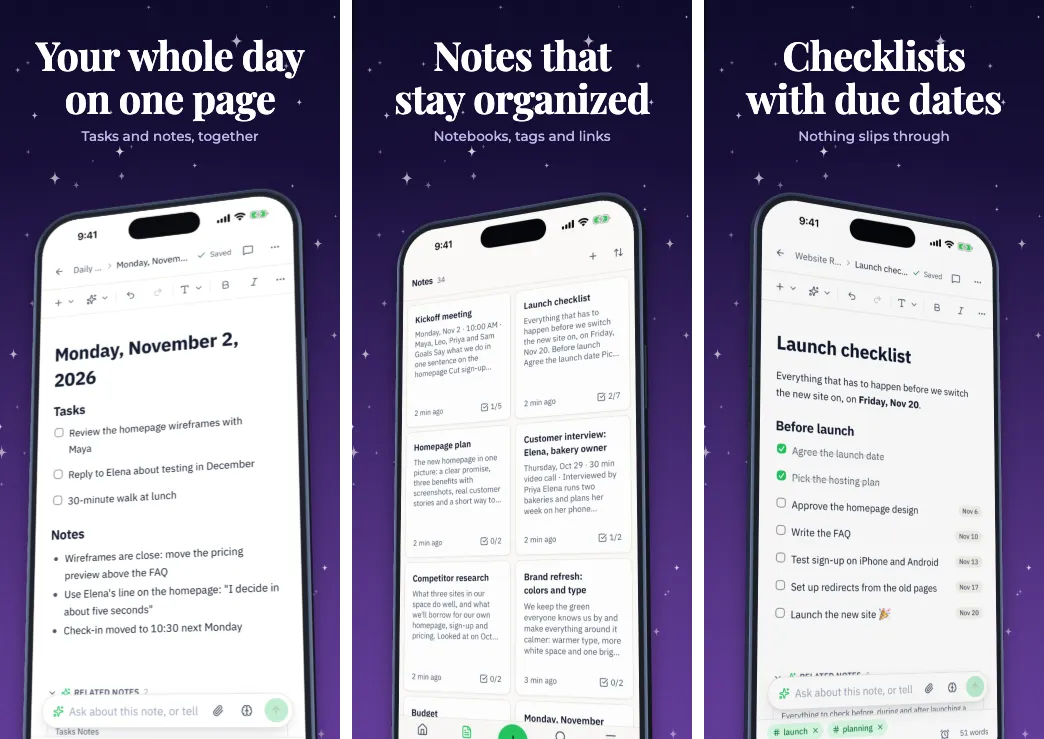
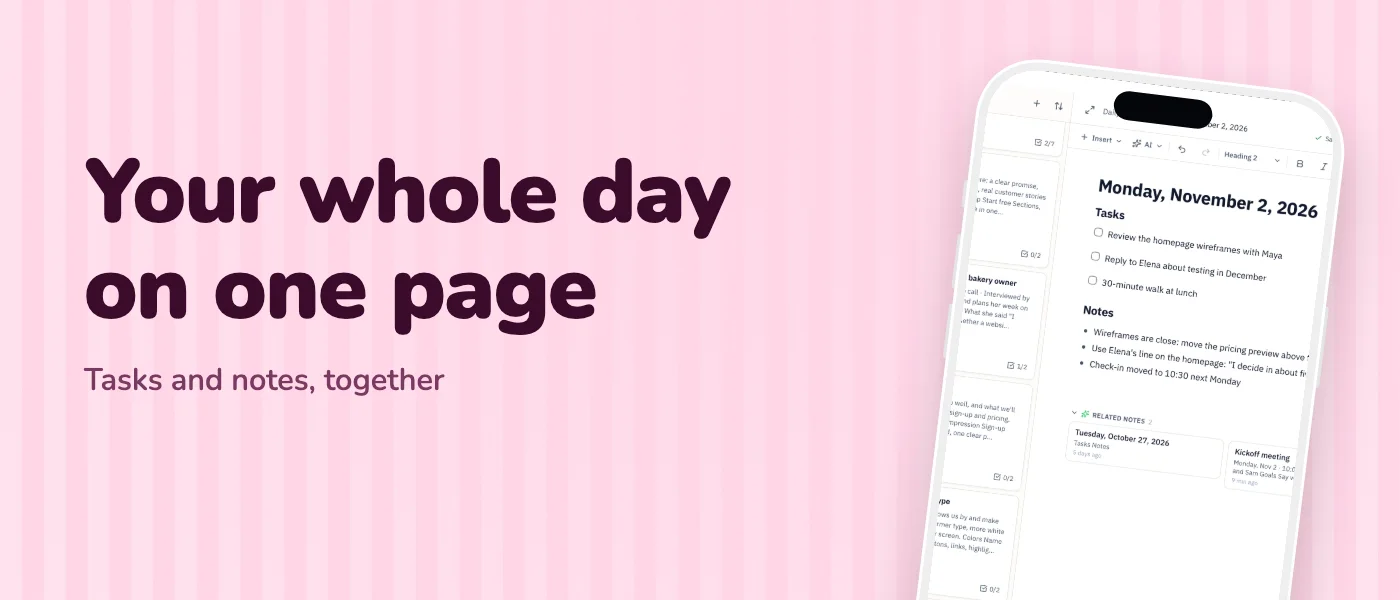
A finished App Store screenshot of a dark screen with a soft glow behind the phone.
  1. Work together, liveEdit on one canvas, see each other's cursors, and leave comments on the exact spot. @mentions reach people by email.Together
  2. Translate all of itCaptions and the text inside your screenshots, in 84 languages for the App Store and Google Play.Languages
  3. Let AI write the wordsIt reads your screens and writes a headline for each one, sized to fit. You keep the last word.AI

Together

Make it together, live.

Your designer, your copywriter and your PM in one project. Changes appear as they happen, and feedback sits on the screen it's about, where everyone can see it.

A comment pinned to a headline on the canvas. Maya at-mentions Alex about a word, Alex replies, and there's a box to reply and a button to resolve.

Live co-editing

Everyone's changes land on the same canvas as they happen. Each person keeps their own undo and their own view.

Cursors and presence

Named cursors, colored selections and who's typing, with an avatar for everyone in the project right now.

Comments on the canvas

Pin one to a point or an element, and it follows that element as it moves. New comments and replies show up for everyone at once.

@mentions

Type @ and pick anyone in the project, even someone who hasn't joined yet. They get an email with a picture of the screen and a link to the comment.

Resolve and reopen

Open and resolved comments are kept apart, so you can see what's left. A new reply reopens a resolved comment.

Email notifications

Replies reach the people in the thread, and resolving a comment tells whoever wrote it. Both can be turned off in Settings. @mentions and invitations are always sent.

Follow anyone's view

Click someone's avatar and your canvas follows theirs, until you stop. Good for walking through a set together.
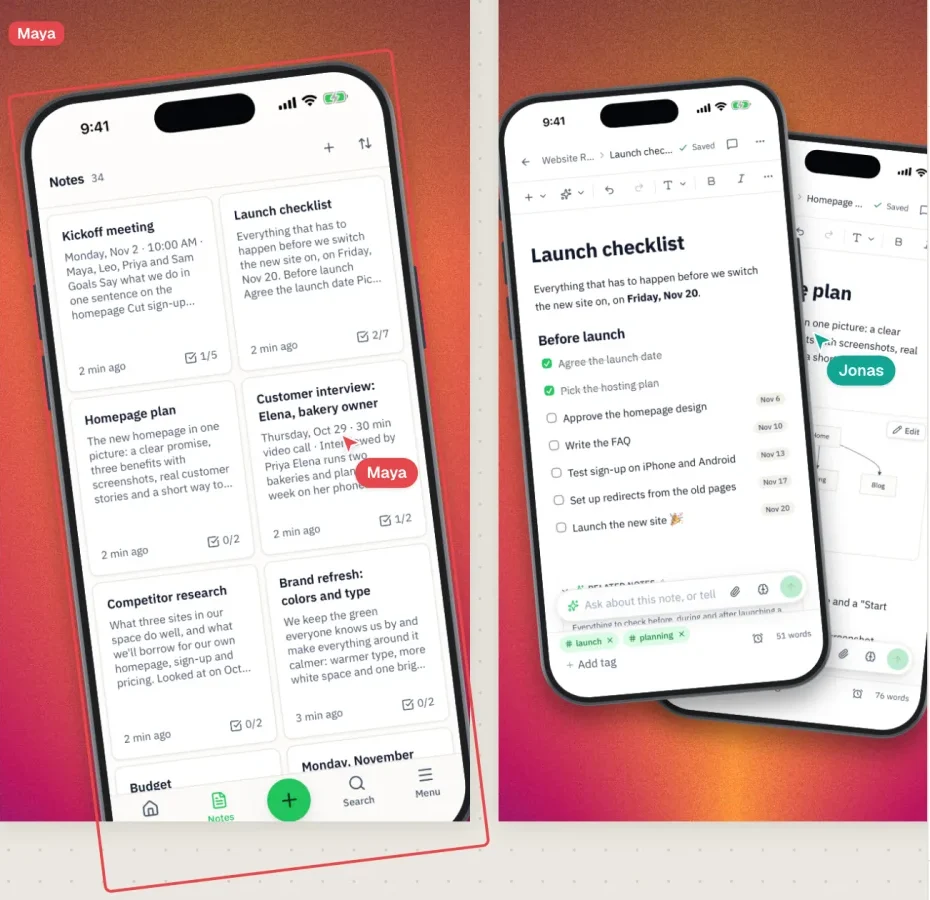
Two screens on the canvas with Maya's and Jonas's named cursors, and Maya's selection around a phone.

Invite by email, pick a role

Editors can change anything. Viewers can't change the design, but can still comment and reply. A project holds up to 200 people, and your plan covers everyone you invite.
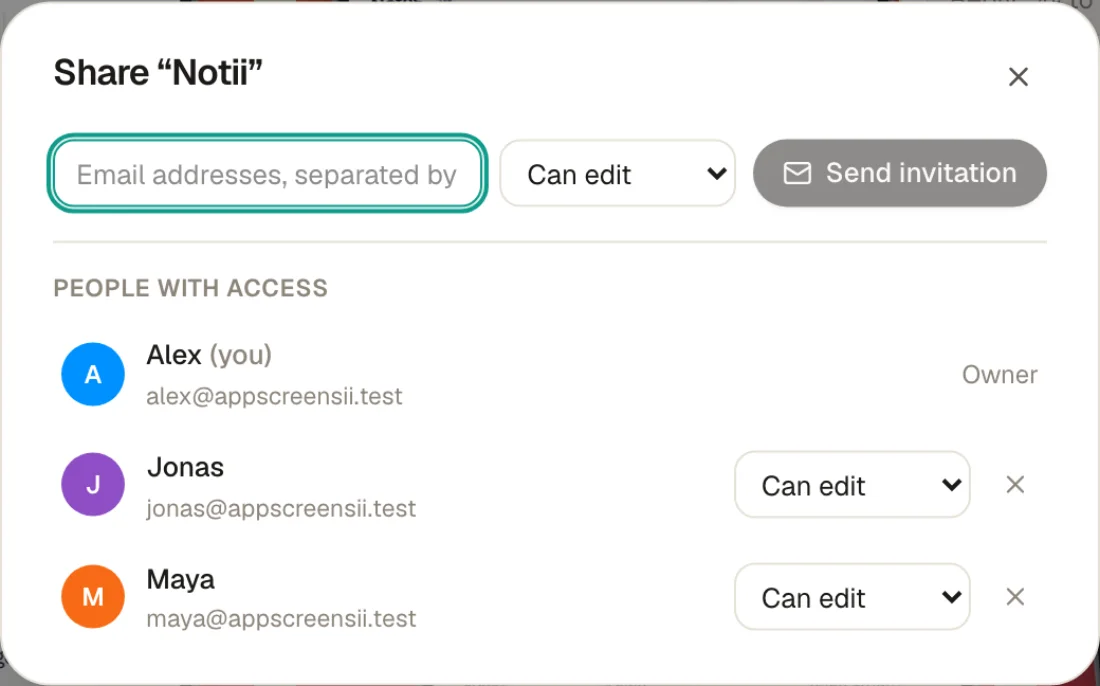
The share dialog: invite by email, and people with access and their roles.

Languages

Translate the captions and the screenshots.

Add a language with one click. Captions come back in natural store phrasing, sized to fit their box, and AI redraws the text inside your screenshots at the original pixel size. These three are real results.

  • 84 languages: 50 for the App Store, 83 for Google Play
  • Right-to-left captions in Arabic, Hebrew, Urdu and Persian
  • Move anything or swap a screenshot for one language only
  • Edit it all in a grid, with CSV import and export
  • Export every language at once, in folders by store and language

Translation is AI, so check each screen. It's told to keep numbers, prices and names as they are, and it keeps your original if a redraw changes too much.

Three finished screenshots in English. The same three screenshots in Japanese, captions and app text. The same three screenshots in German, captions and app text. The same three screenshots in Arabic, captions and app text.

The whole set, in any language

Switch language and the canvas follows, with its translated captions and screenshots. Tweak a position or a screenshot for that language alone.
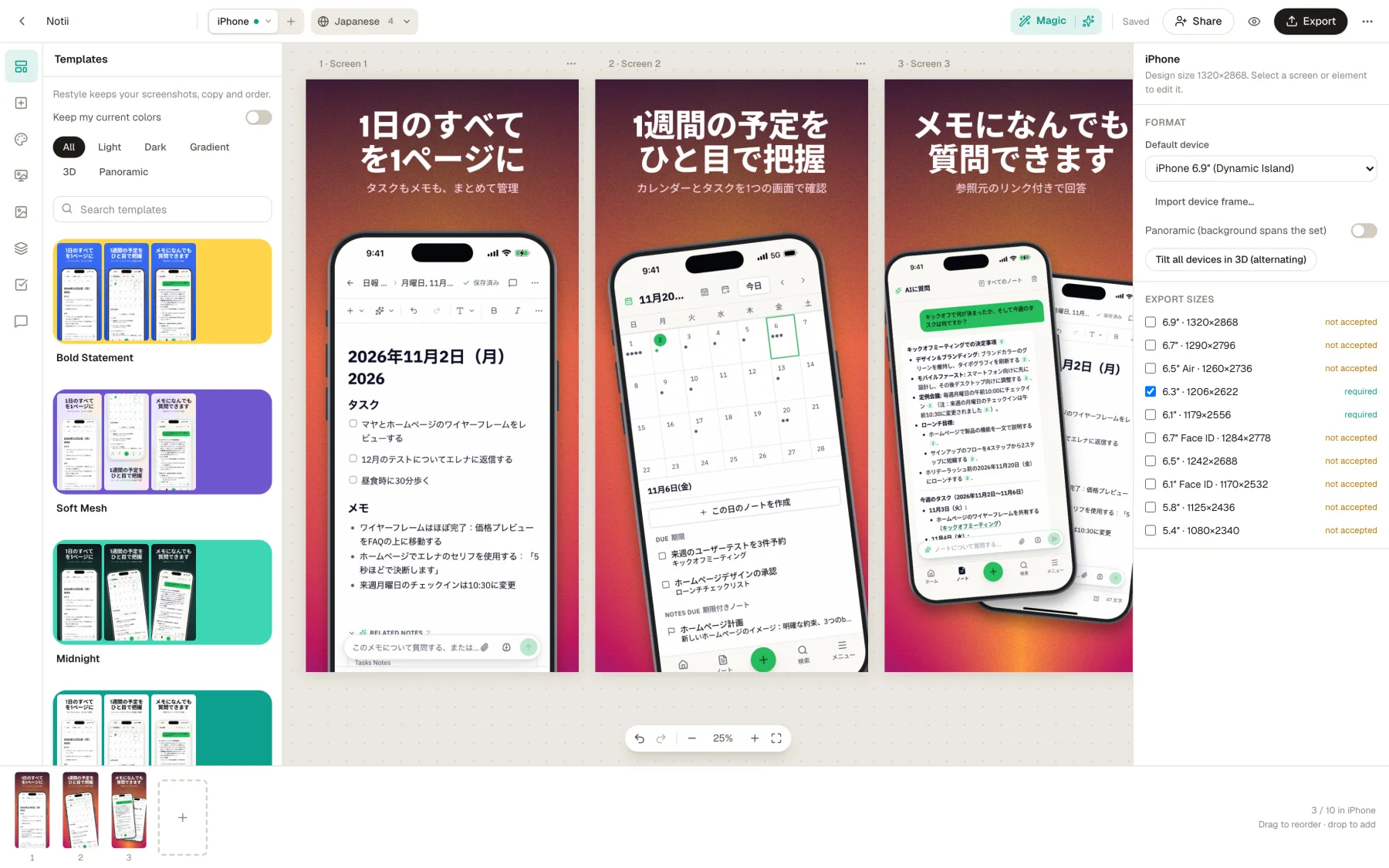
The editor showing the same project in Japanese, with translated captions and app text.

Every language in one grid

Read and edit all your captions side by side, spot the ones that overflow or aren't translated yet, and move them in and out as CSV.
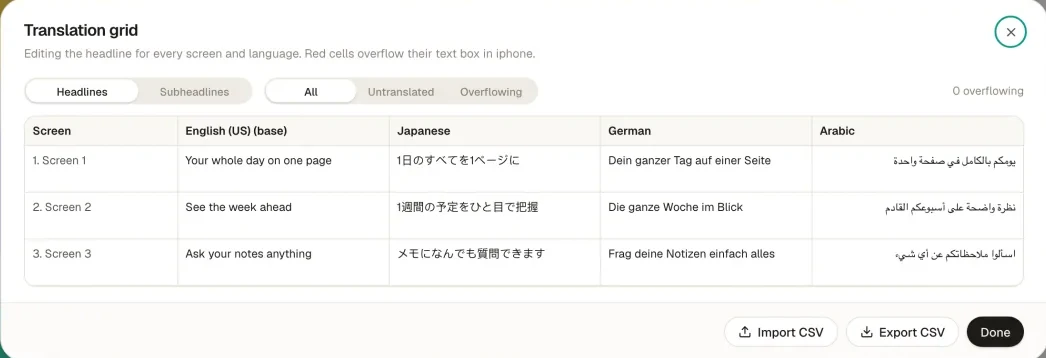
The translation grid with captions in English, Japanese, German and Arabic.

AI

AI reads your app and writes the words.

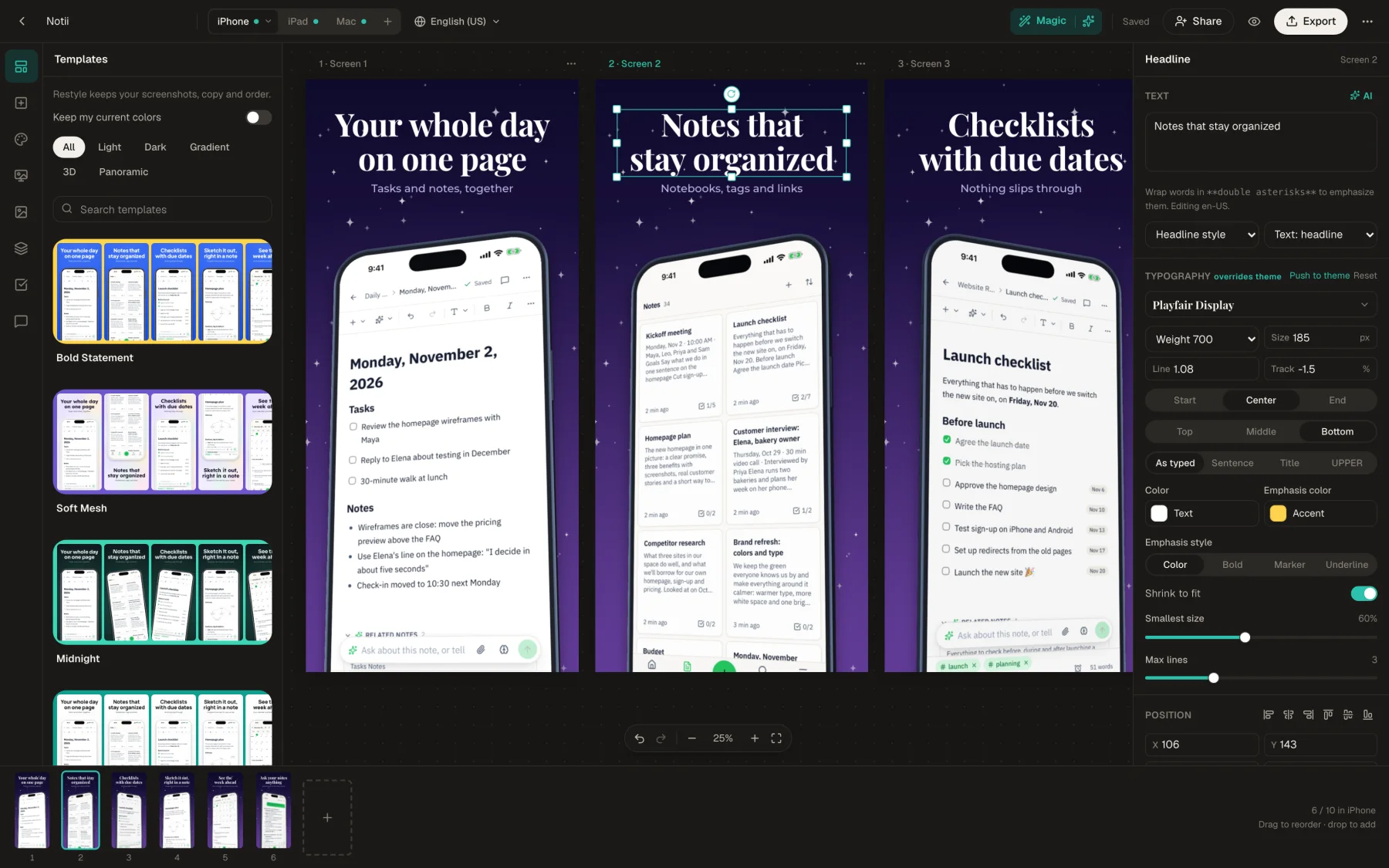
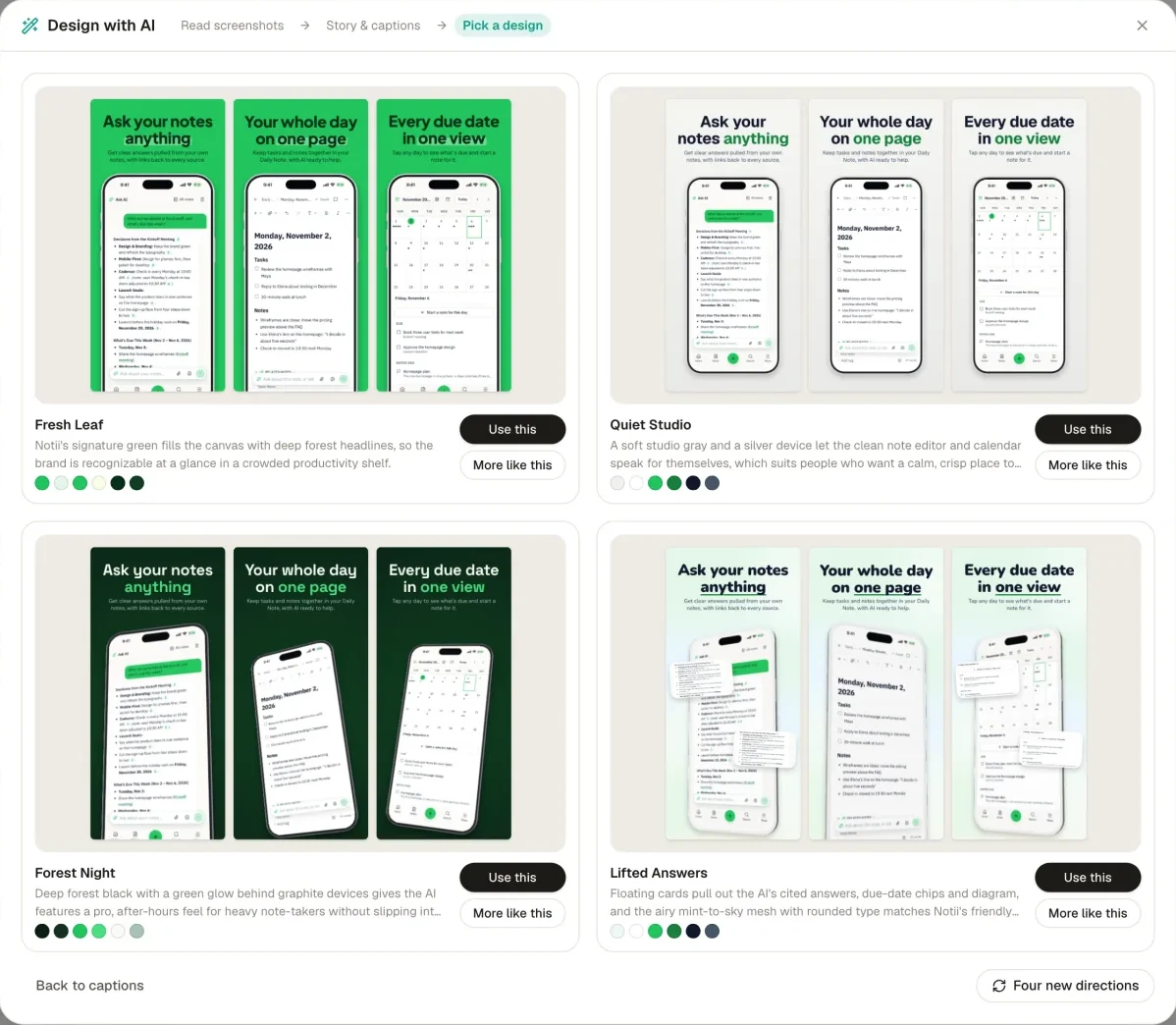
Press Magic and it reads each screenshot, finds the benefit, puts the screens in order, and writes each one a headline with alternates, plus a subheadline where it helps. Edit any of it, then pick from four designs drawn with your screens. It's all one step to undo.
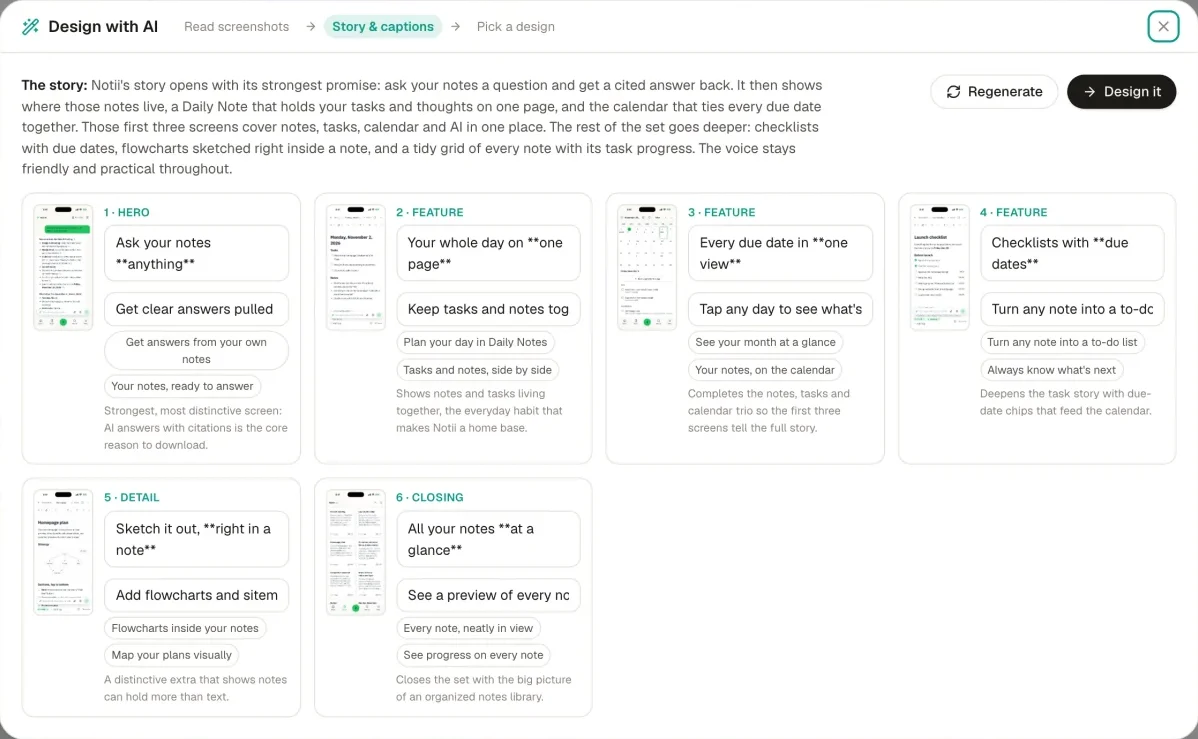
Magic: a storyboard of six screens with AI-written headlines, subheadlines and reasoning.
Pick a design: four AI design directions, each rendered with the app's real screens.

Sized to fit

Every headline is written for the room in its text box, in your project's language. It's told to use your app's feature names and stick to what your screens show.

Written for the stores

It's told to avoid what Apple and Google don't allow, such as prices and rankings. Checks flags anything that slips through, and AI can reword it in a click.

Rewrite a caption

Punchier, shorter, clearer benefit, more playful, more premium, five alternatives, match the others, or shorten to fit. Hover to preview.

Ask AI

Press ⌘K and say what you want. “Make the headlines shorter.” Changes appear on the canvas first, to accept or discard.

Get a review

A score out of 100 across seven categories such as message and readability, with up to eight findings and fixes to apply.

Generate a background

Ten styles or your own words, up to 4K, using your theme colors if you like. In a panoramic set it's one continuous image.

84languages
30templates
28export sizes
19device frames
78fonts
30store checks

How it works

From raw capture to store page.

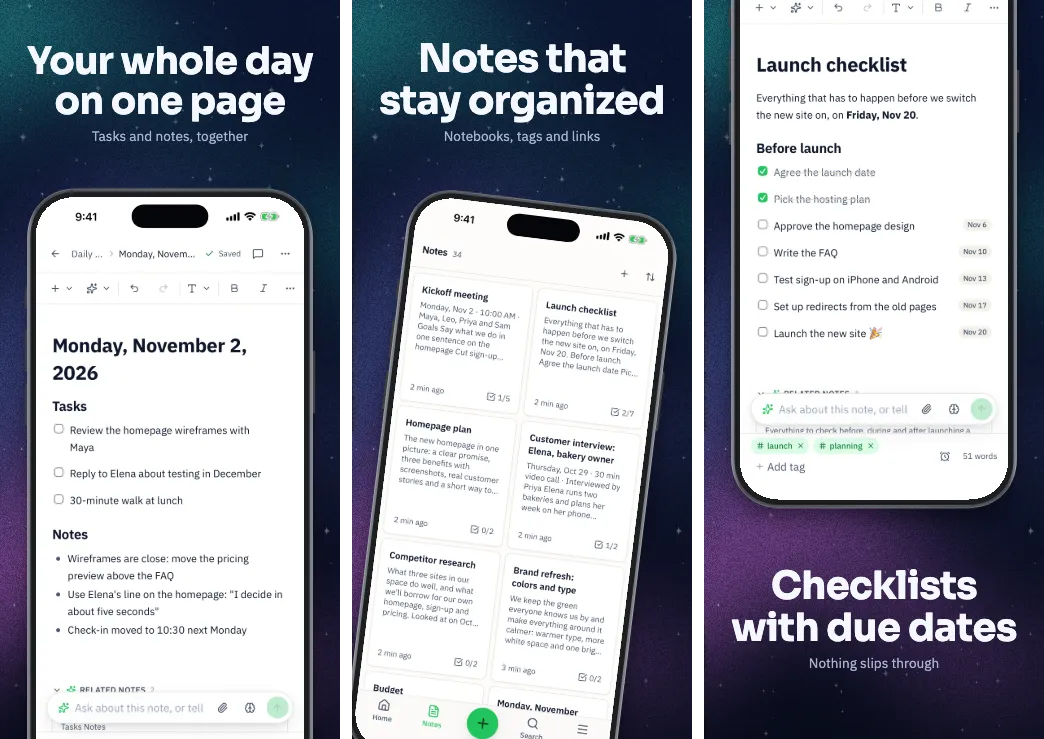
No plugin and nothing to install. Everything on this page is the real app, working on real captures of Notii, a notes app by the same maker.
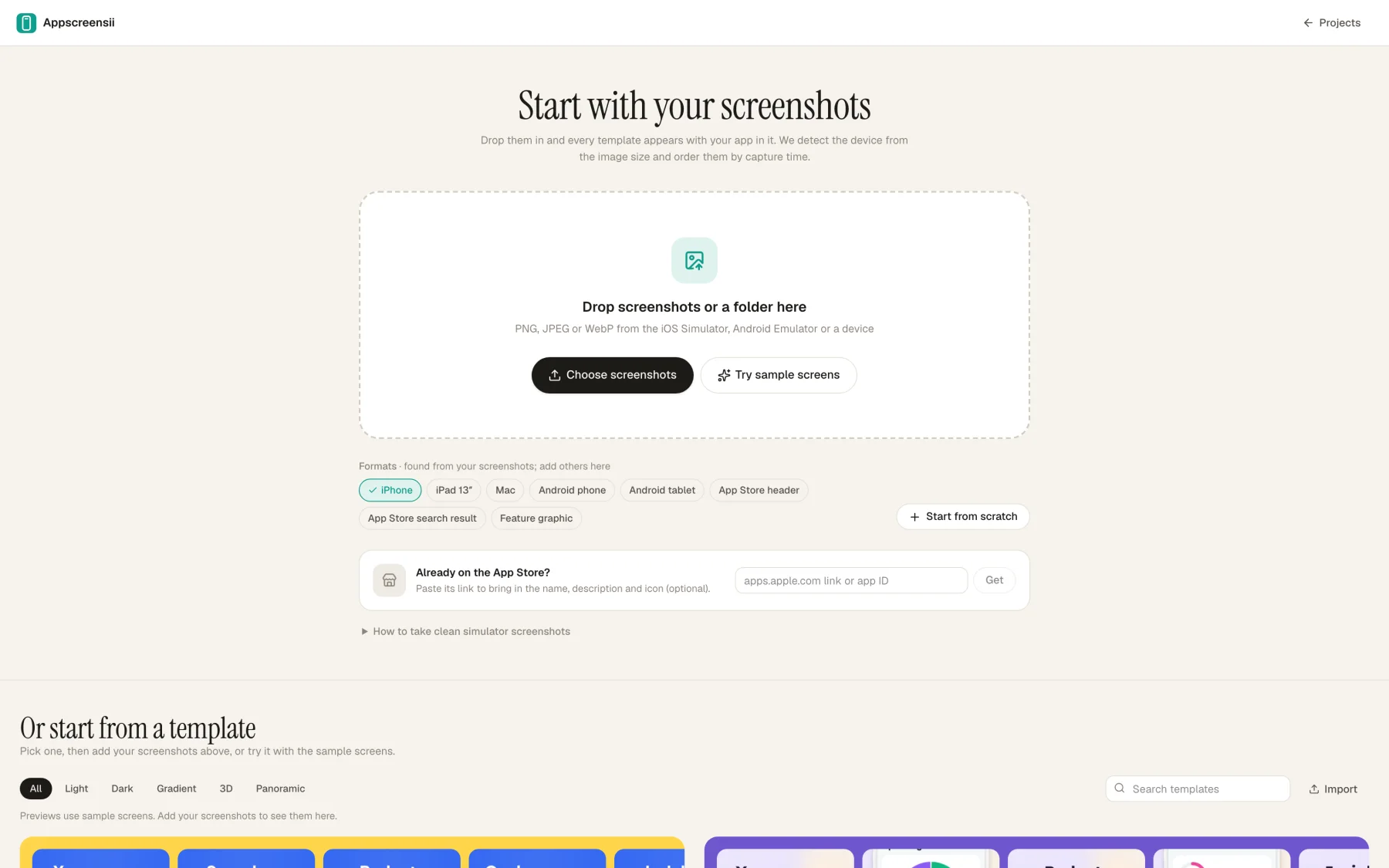
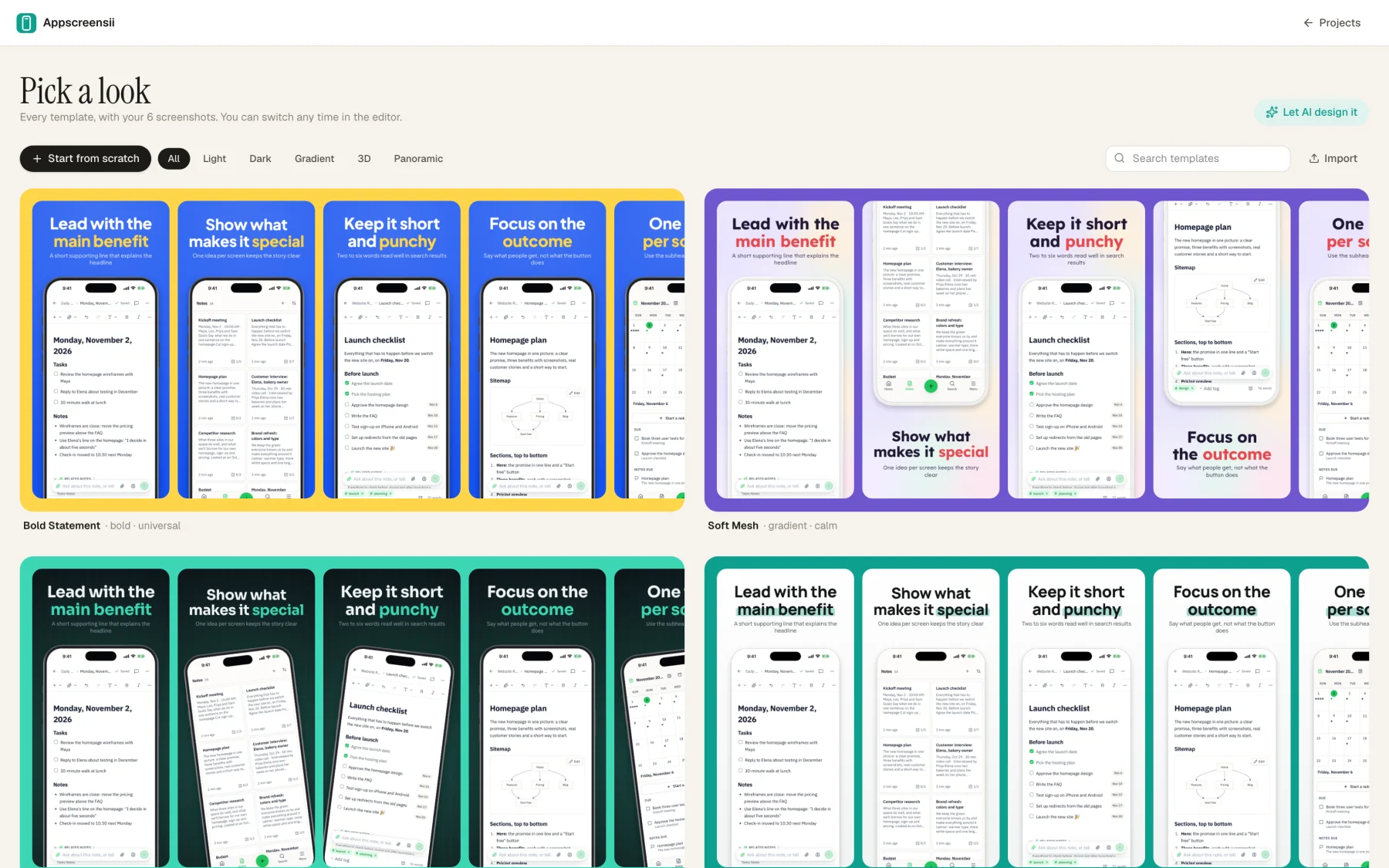
Templates

30 looks, each with your app already in it.

Restyle any time without losing your screenshots, captions or order. Change one screen's layout from 20 layouts, or save your own project as a template.
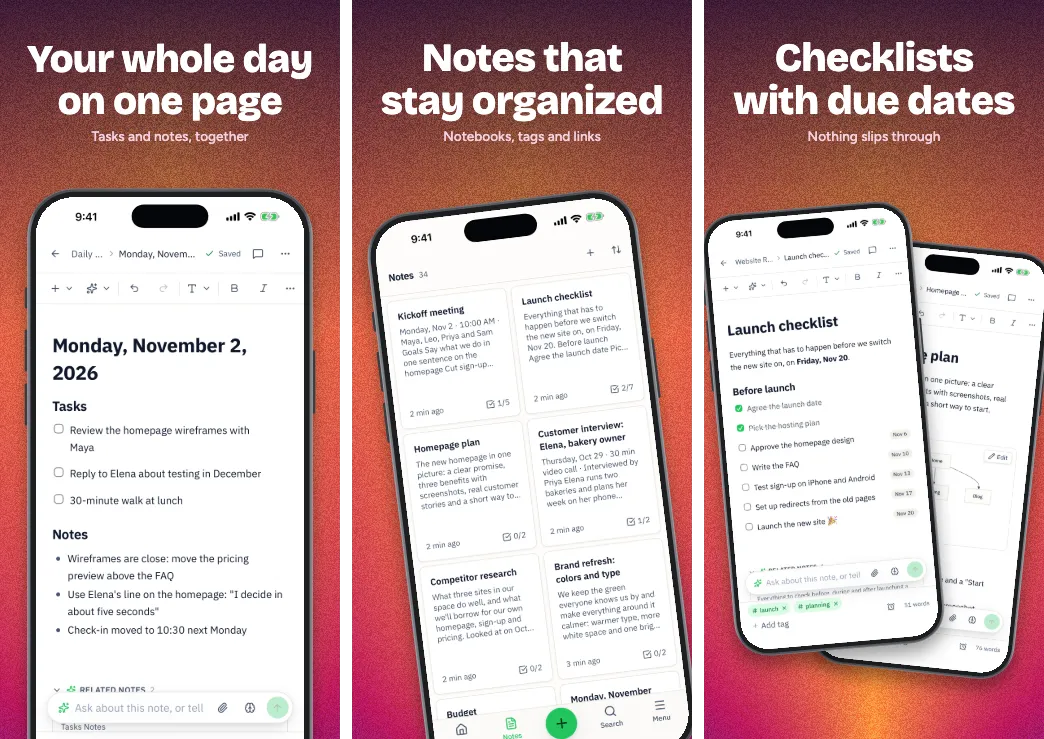
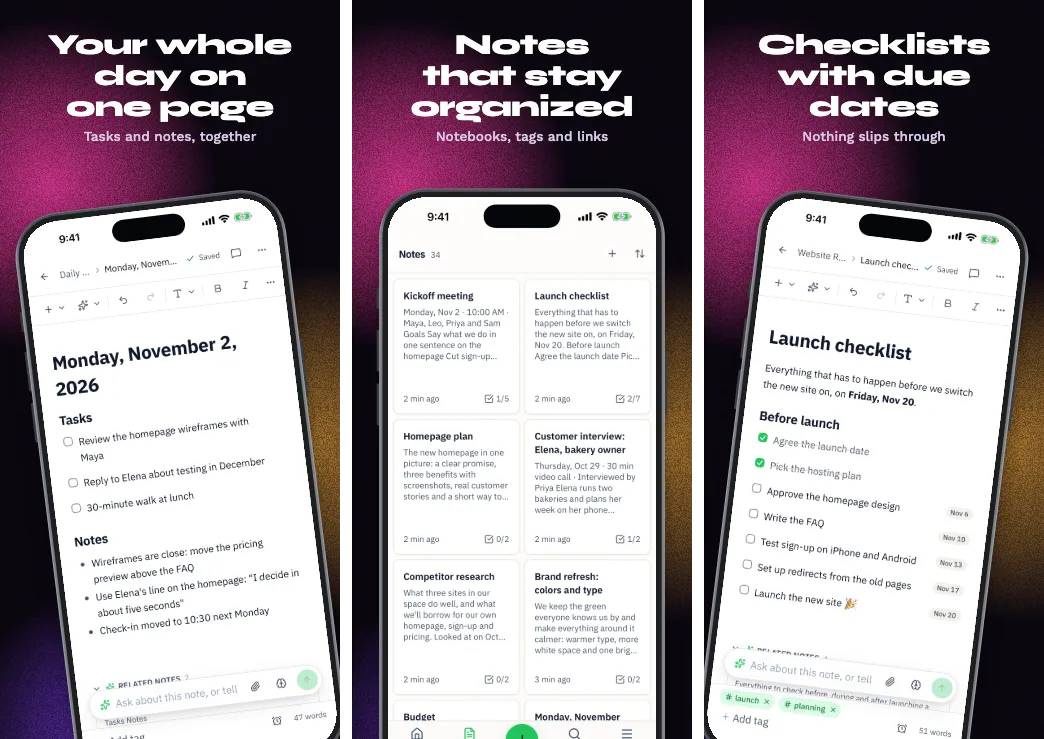
Sunset Glow template
Sunset Glow
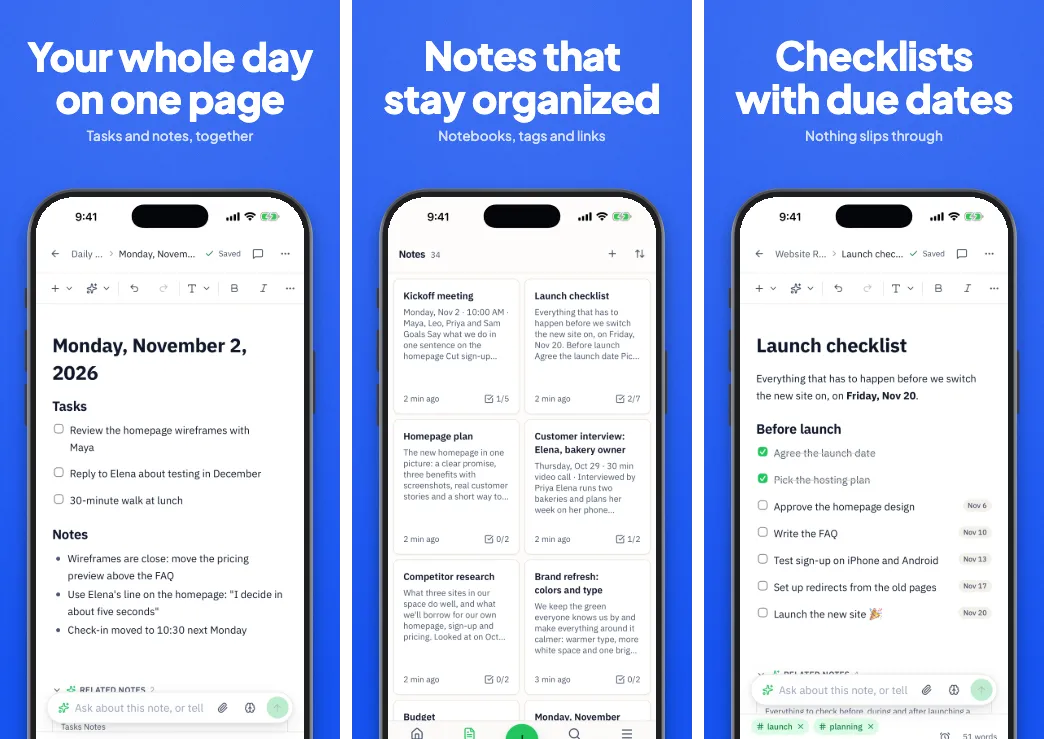
Bold Statement template
Bold Statement
Aurora Night template
Aurora Night
Citrus Fresh template
Citrus Fresh
Halftone Pop template
Halftone Pop
Panorama Flow template
Panorama Flow
Holographic template
Holographic
Noir Gold template
Noir Gold
Playful Pop template
Playful Pop
Orbit template
Orbit
Big Type template
Big Type
Party Neon template
Party Neon
Soft Mesh template
Soft Mesh
Terminal template
Terminal
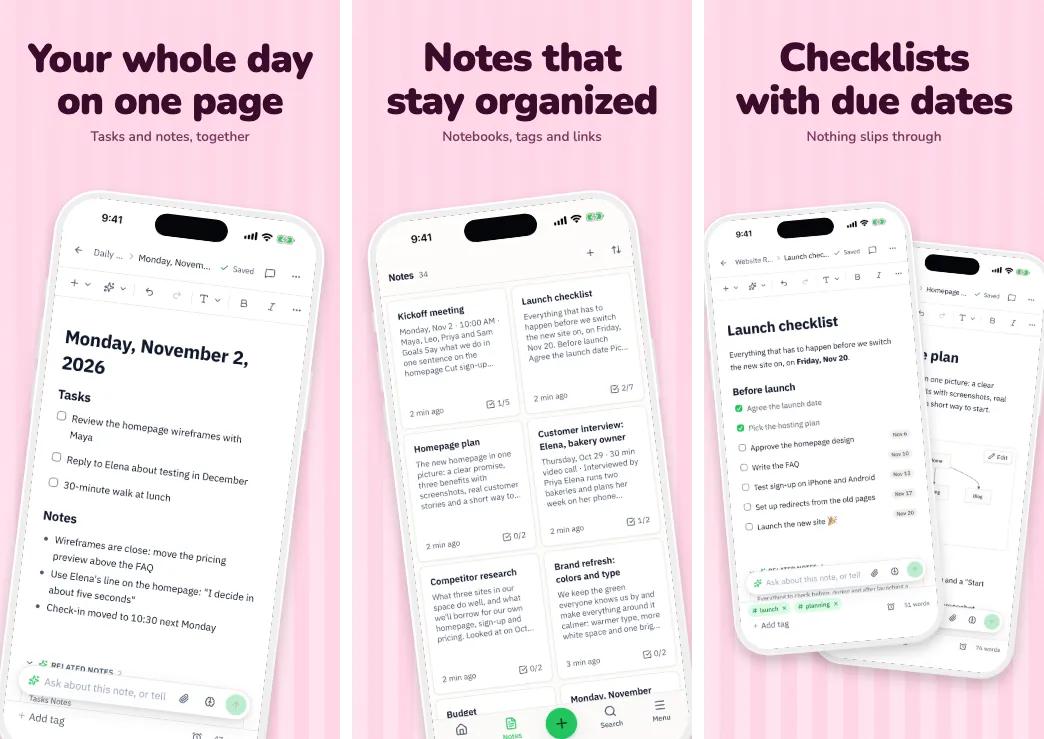
Candy Stripes template
Candy Stripes
Ocean Depth template
Ocean Depth
Sunburst template
Sunburst
Starlight template
Starlight

One capture, before and after.

Drag across the picture. This is the same capture, with a template, a caption and a device frame added in the editor. Nothing else was touched.

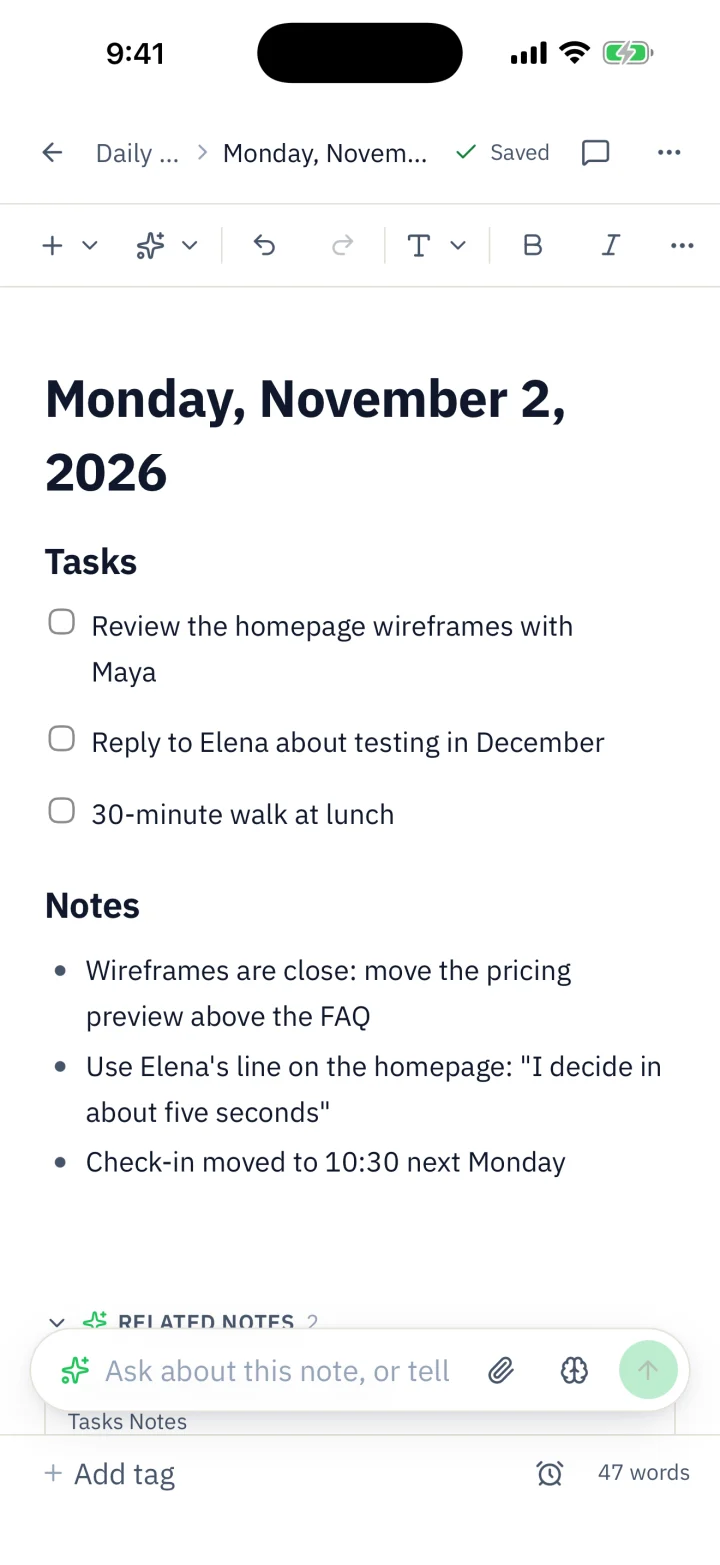
  • Device frames that stay sharp at any size
  • A clean 9:41 status bar when you want one
  • The same slider in Preview, for every screen
After: the capture in a phone frame on a sunset gradient, under the headline Your whole day on one page.
Before: the raw capture from the iPhone Simulator.

The editor

A real design tool, built for one job.

Move, resize, rotate and snap on a canvas that shows your whole set. Copy styles across screens and sets, and undo up to 200 steps.

Backgrounds with range

Solid, linear, radial, conic, aurora, mesh, image, pattern and blobs. 19 presets and 11 patterns to start from, or generate one with AI.
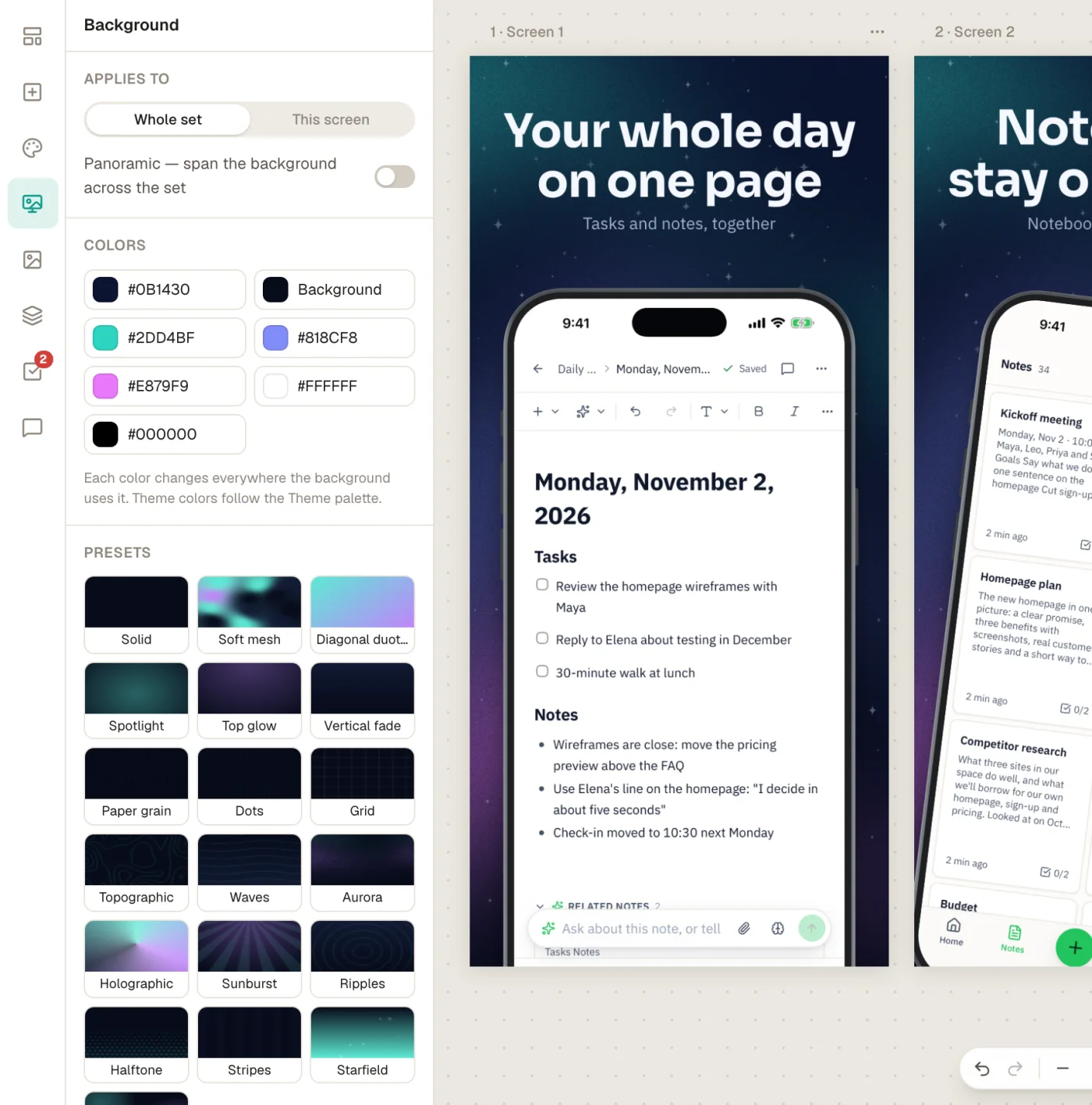
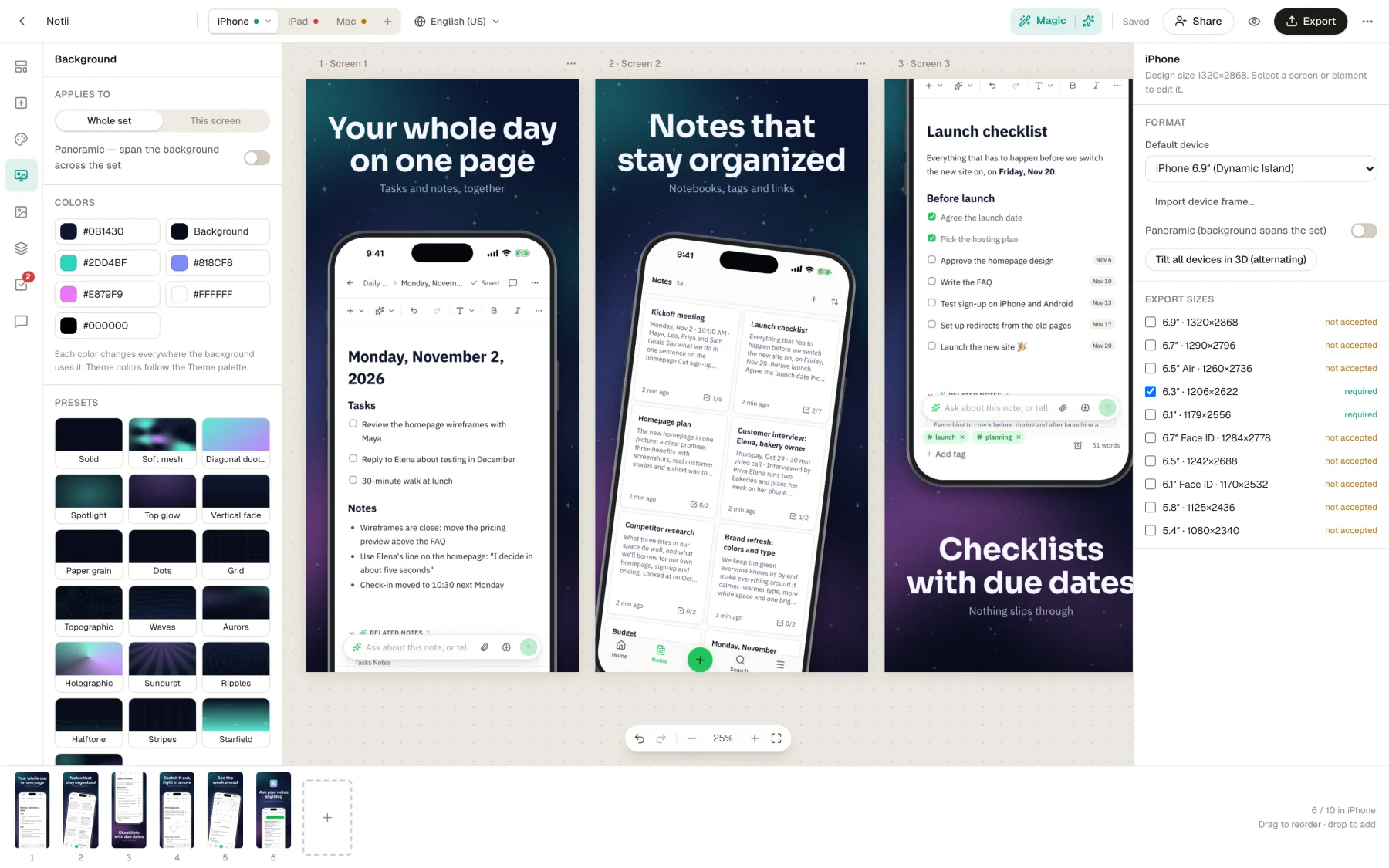
The background panel with color roles and a grid of presets, beside finished screens.

78 fonts, 27 pairings

Self-hosted, searchable and shown in their own face. Emphasize a word with color, weight, a marker or an underline.
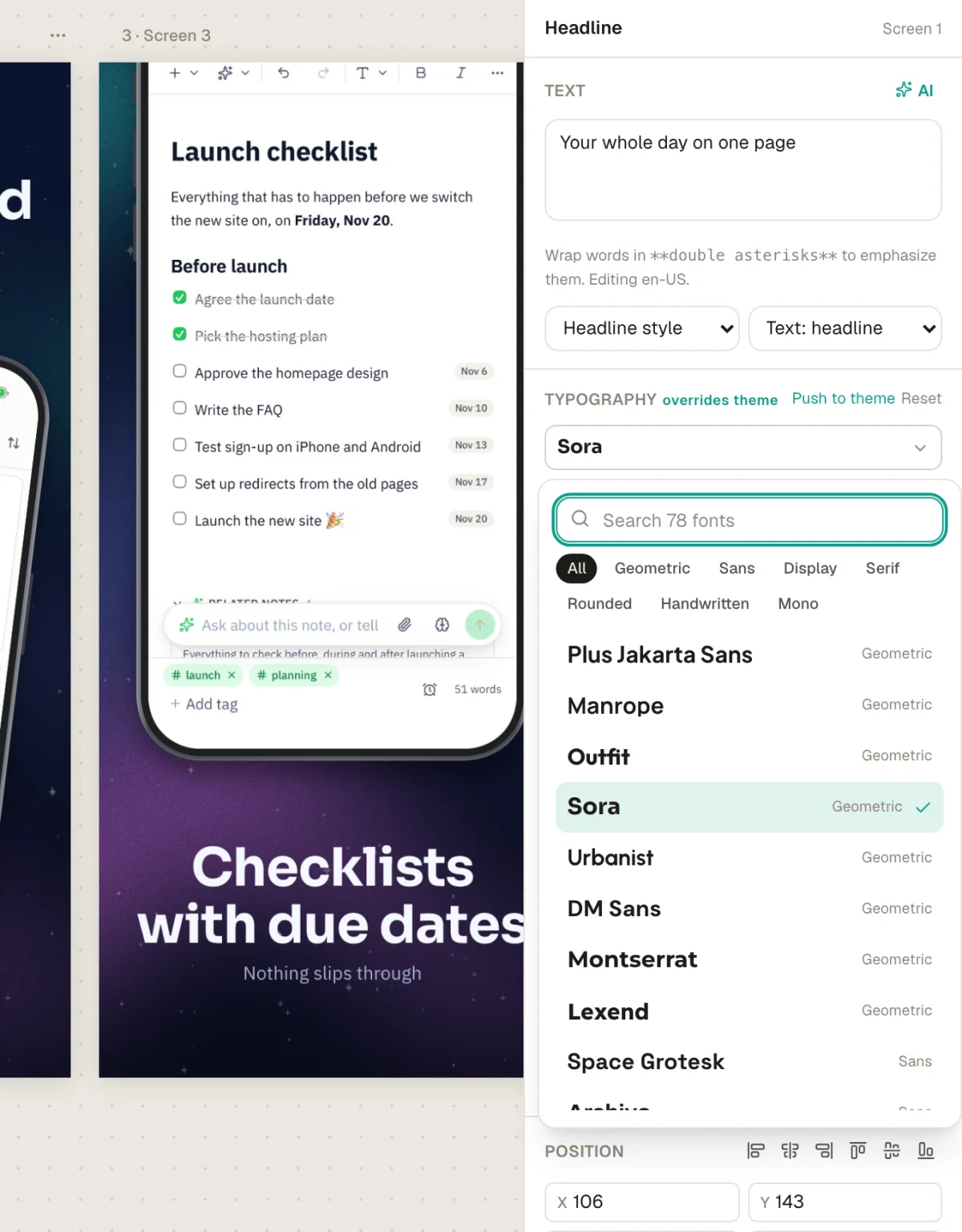
The font picker open on a headline, listing fonts by genre.

Frames and real 3D

19 device frames in five styles. Turn, tilt and spin any device, with light and depth. The screenshot moves with the glass.
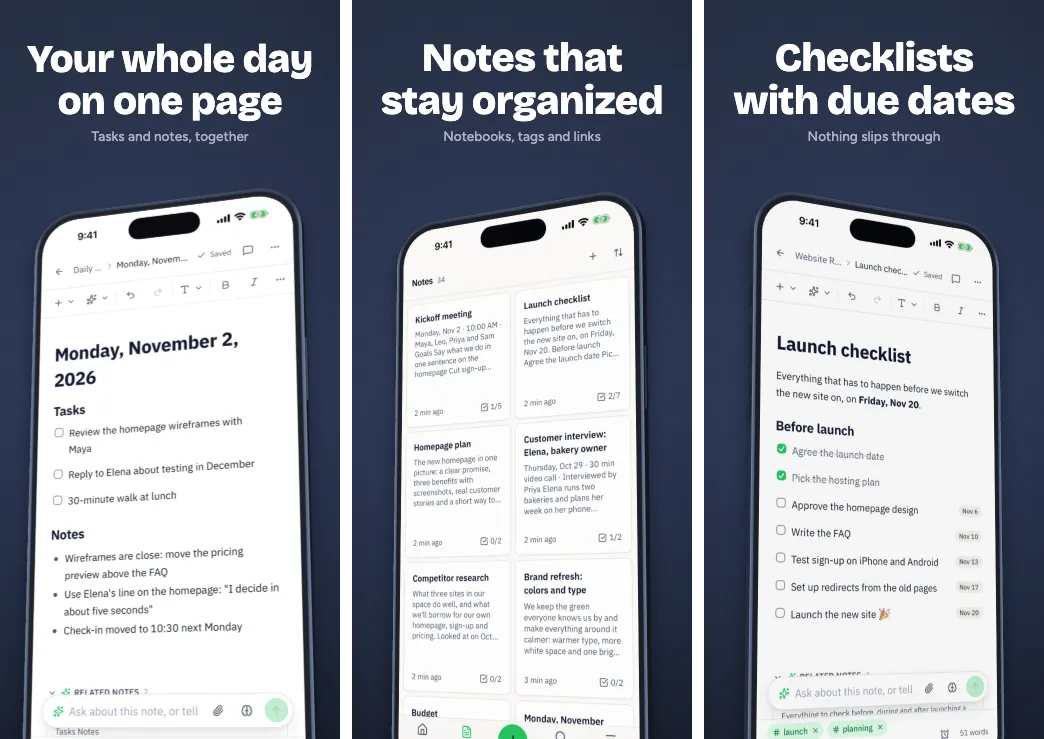
Three screens in the Hero 3D template, with phones turned in perspective.

Magnified callouts

Zoom into one part of a screenshot and float it over the device, to point at the thing that matters.
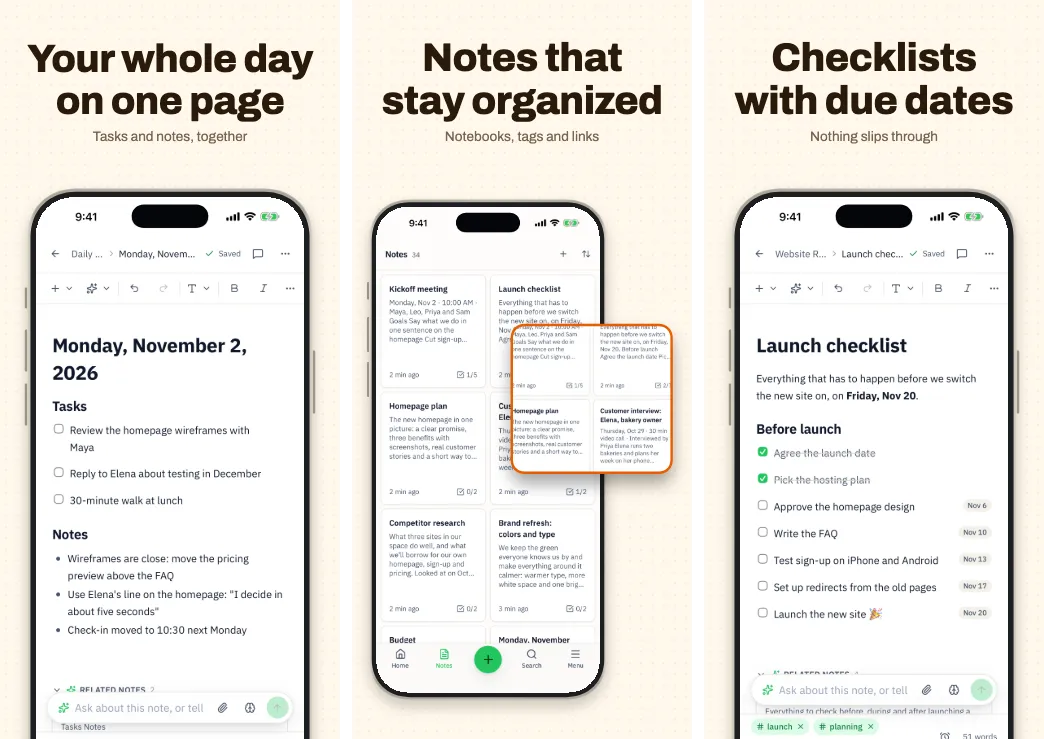
Three screens in the Spotlight Callout template, with a magnified detail over each phone.

Panoramas across a set

One background runs through every screen, and a device can span two of them, so swiping feels continuous.

Three screens in the Ocean Depth template, with one background flowing across them.

Colors from your app

Six color roles, generated from your brand color in five harmonies, or picked from your own screenshots.
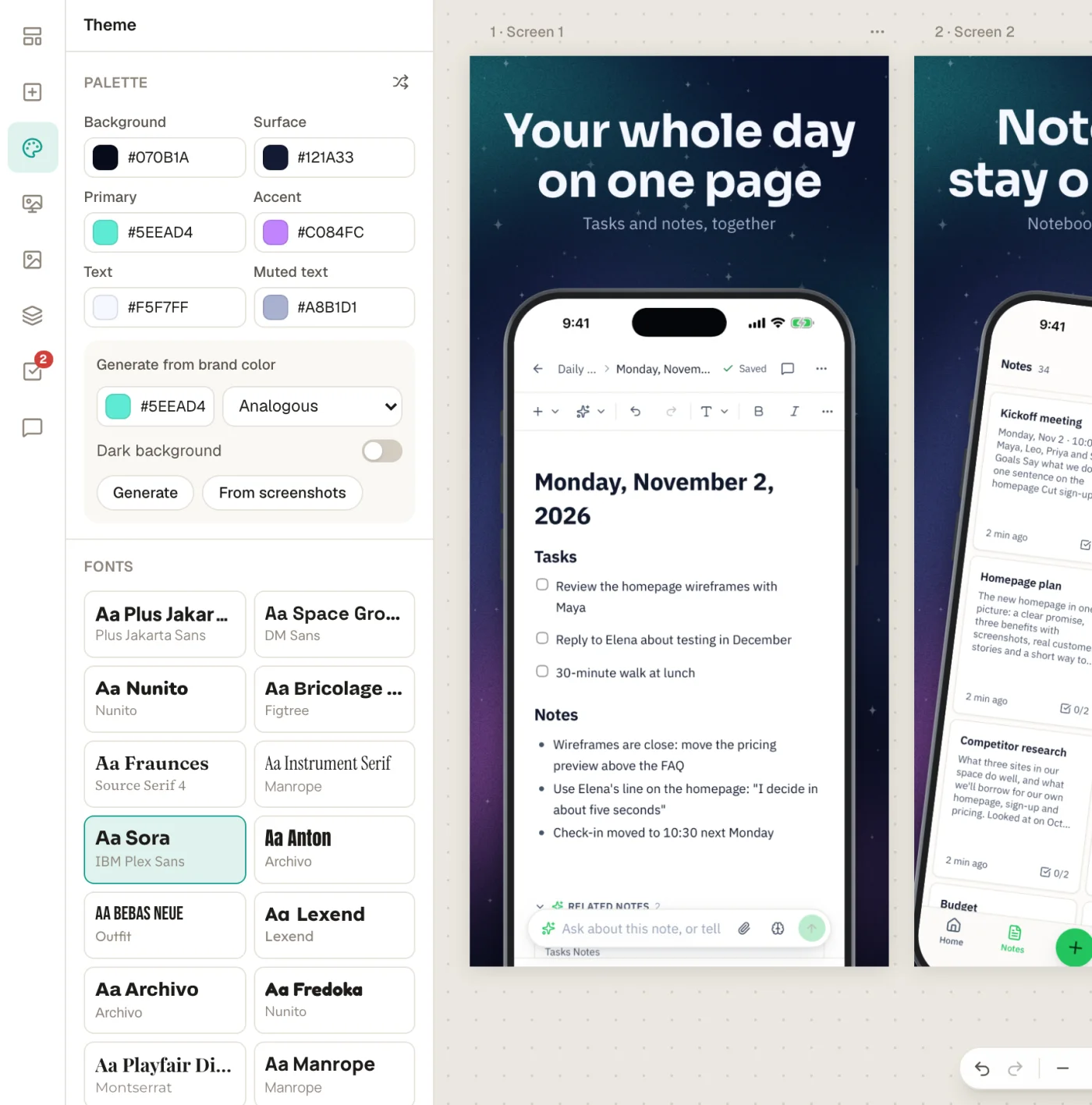
The theme panel with the color palette and font pairs.

Icons, emoji and layers

2,015 icons and 1,652 emoji, searchable and bundled. Groups scale everything inside, including type and shadows. Lock, hide and reorder in Layers.
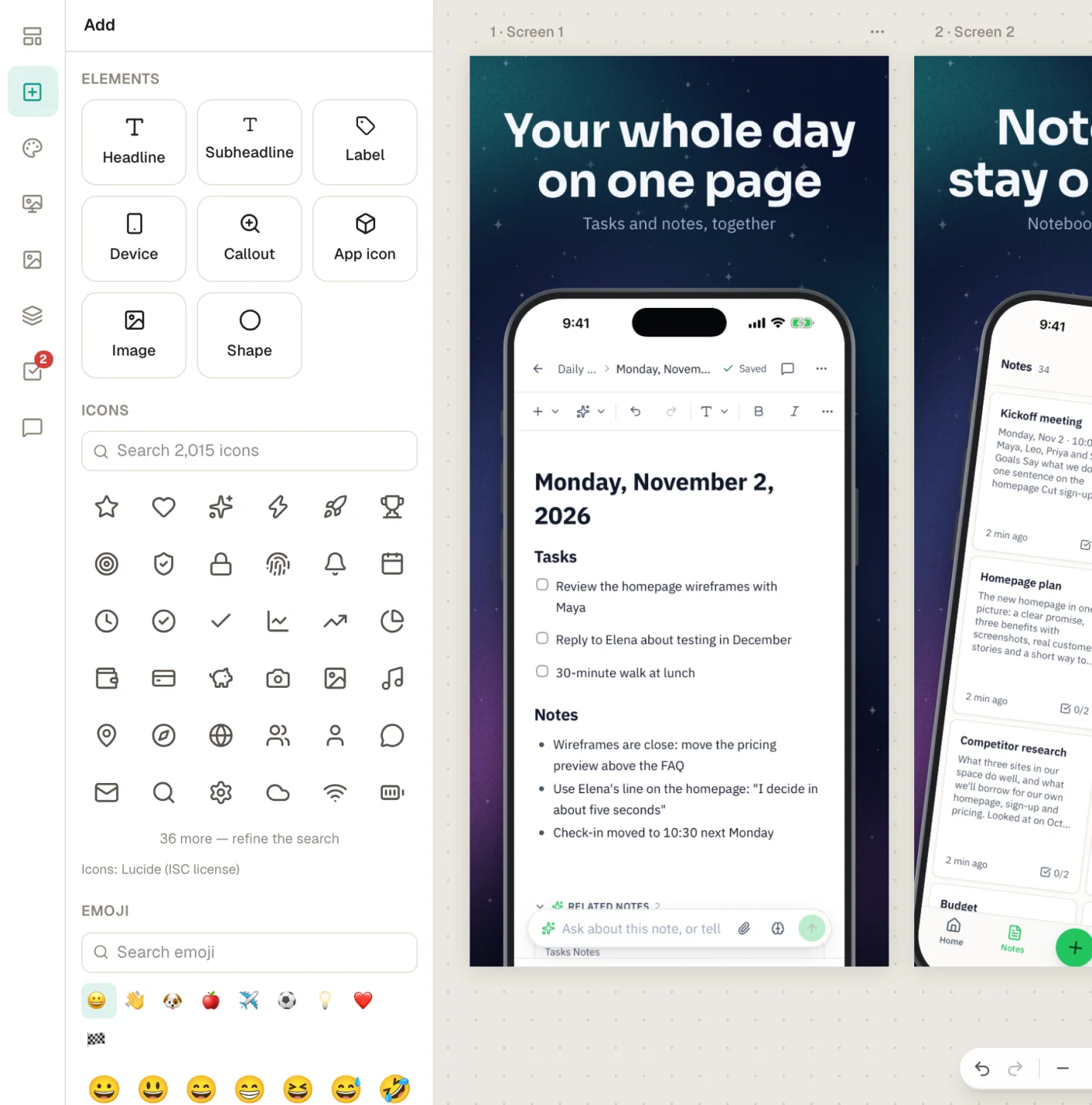
The Add panel with elements, icons and a grid of emoji.
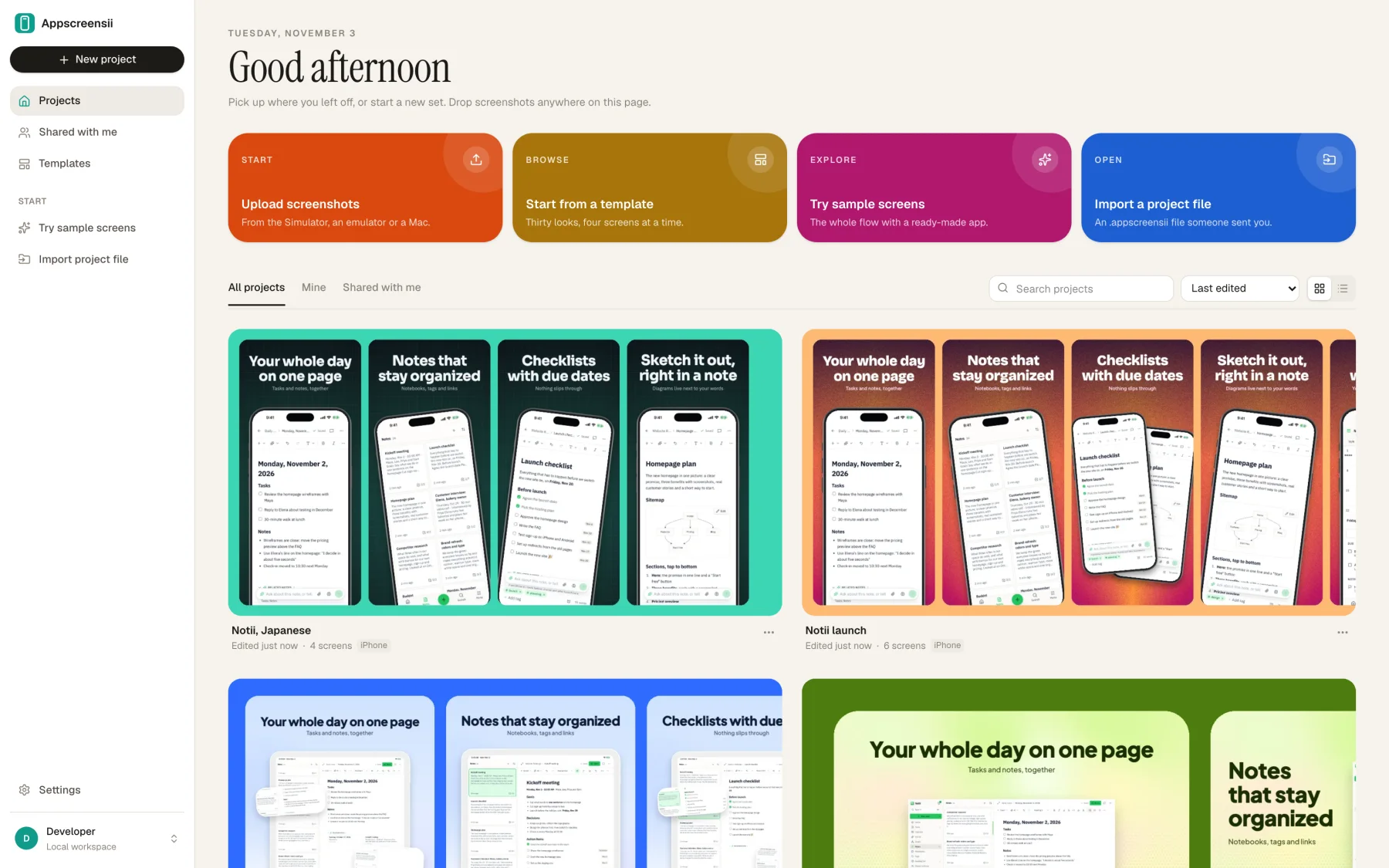
The projects page with a card for each project, showing its screenshots.
All your projects. Saved to your account, on any computer.
The editor in its dark appearance, with a starry template on the canvas.
Light or dark. Follow your system, or choose one.

Stores

Every device.
The sizes each store takes.

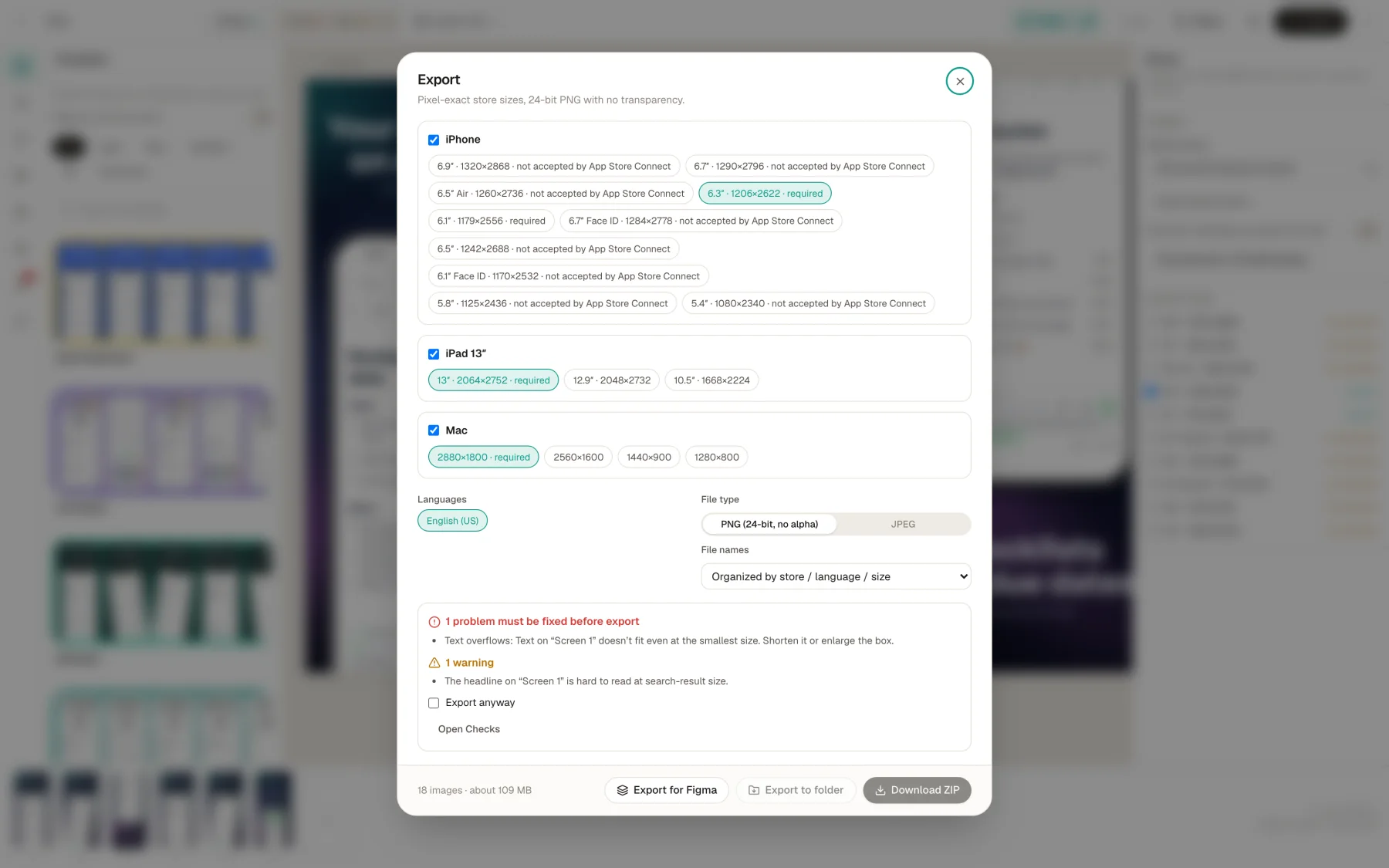
Keep iPhone, iPad, Android, Mac and store header images in one project, with the same captions. Appscreensii knows which sizes App Store Connect refuses and says so before you upload. See every App Store size and Google Play's rules.
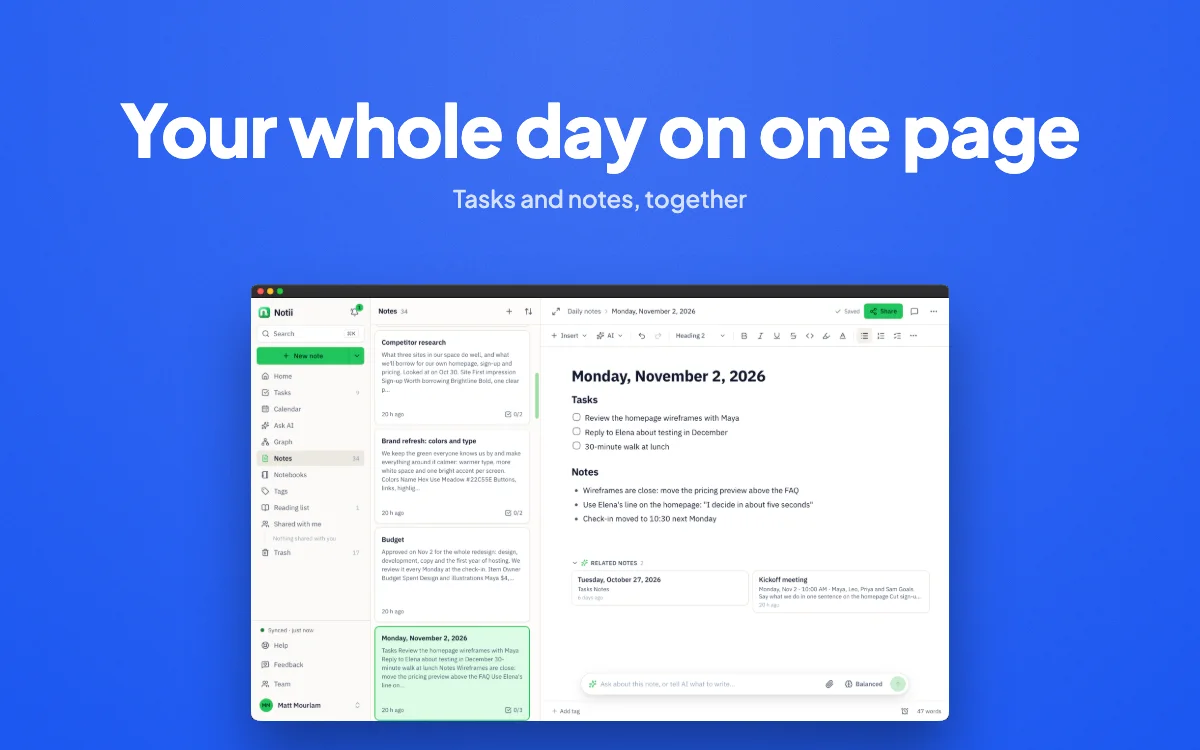
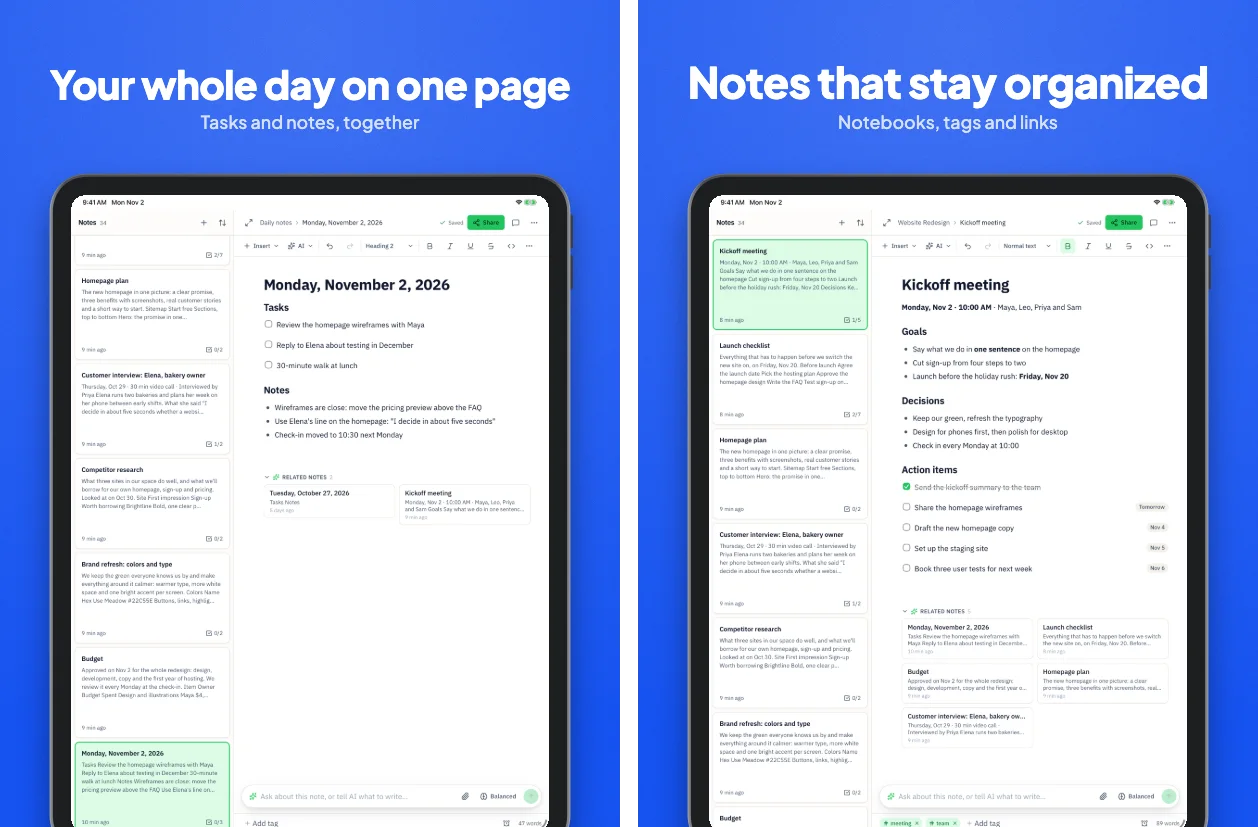
A finished Mac App Store screenshot of a notes app in a window.
Mac
Two finished iPad screenshots.
iPad
Three finished Android phone screenshots of a budgeting app.
Android
A wide App Store header image.
App Store header

iPhone

1206×2622 required

1179×2556 required

Either one meets Apple's iPhone slot. Larger presets are there too, marked if App Store Connect won't take them.

iPad

2064×2752 required

2048×2732

1668×2224

Mac

2880×1800 required

2560×1600

1440×900

1280×800

App Store images

3840×1646 header

3840×2560 search

1920×1280 search

5244×2950 both

2007×2853 iPhone Duo inner

1398×2034 iPhone Duo outer

Google Play

1080×1920 phone

1440×2560 phone or tablet

2160×3840 tablet

1024×500 feature graphic

30 checks, as you work

Text that overflows, weak contrast, refused sizes, words the stores don't allow, other platforms' names, upscaled captures. After Magic has read your screens, it also spots real-looking personal data, debug overlays and visible keyboards. Many have a one-click fix.
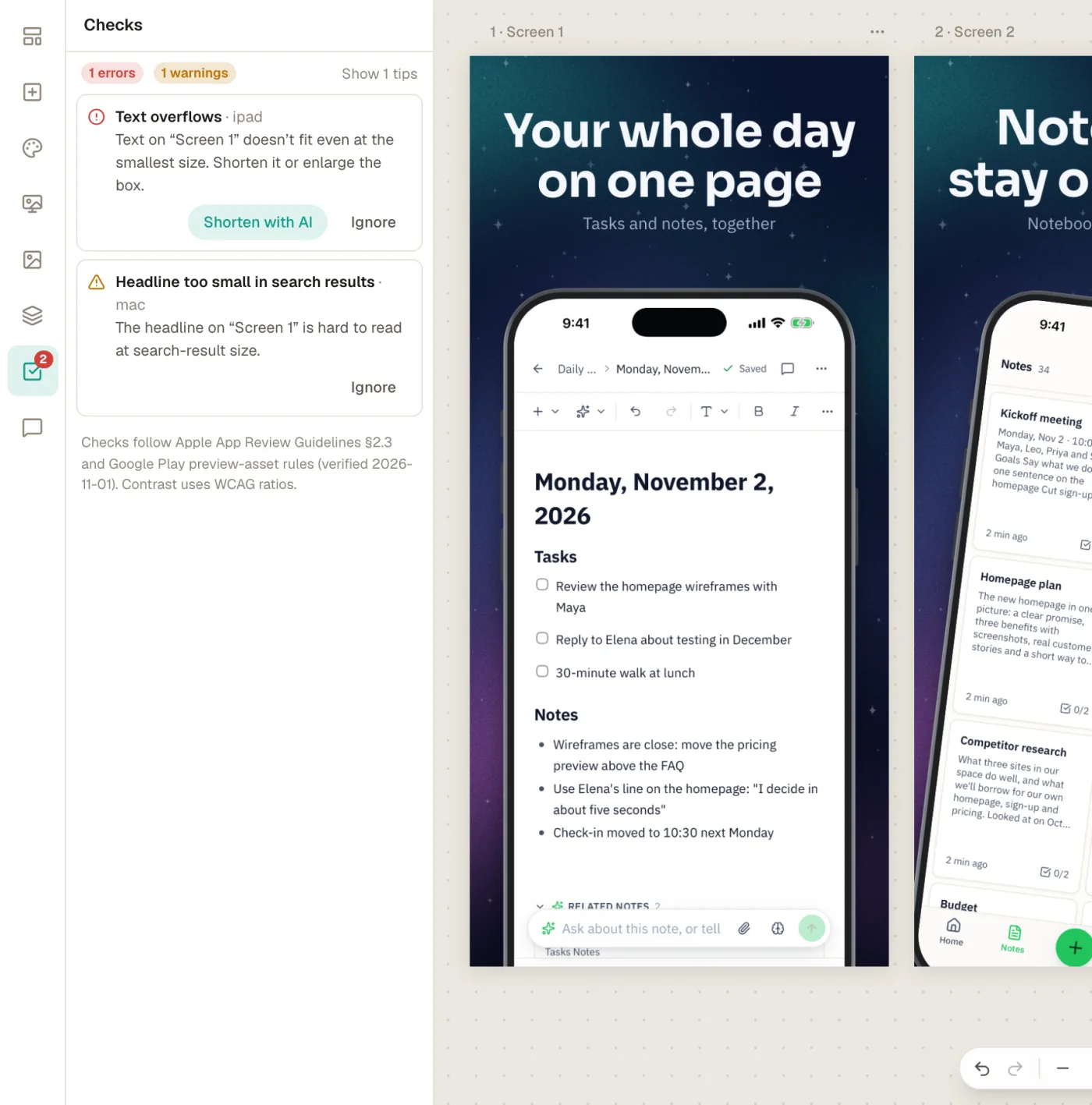
The checks panel listing issues with fix buttons.

See it the way shoppers will

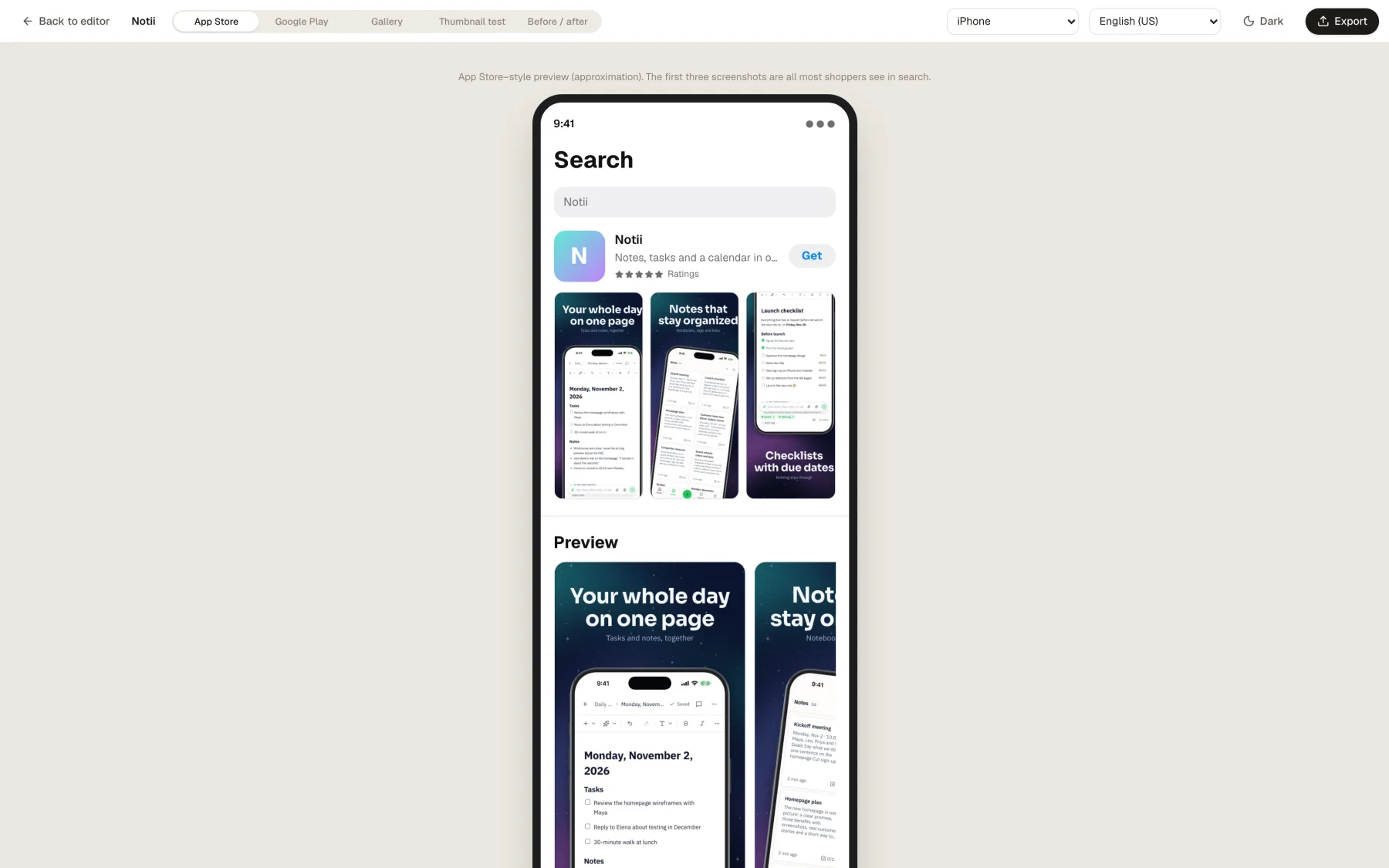
A mock search result and carousel for the App Store, a mock listing for Google Play, a thumbnail test with a squint blur, and a full-screen gallery to present.
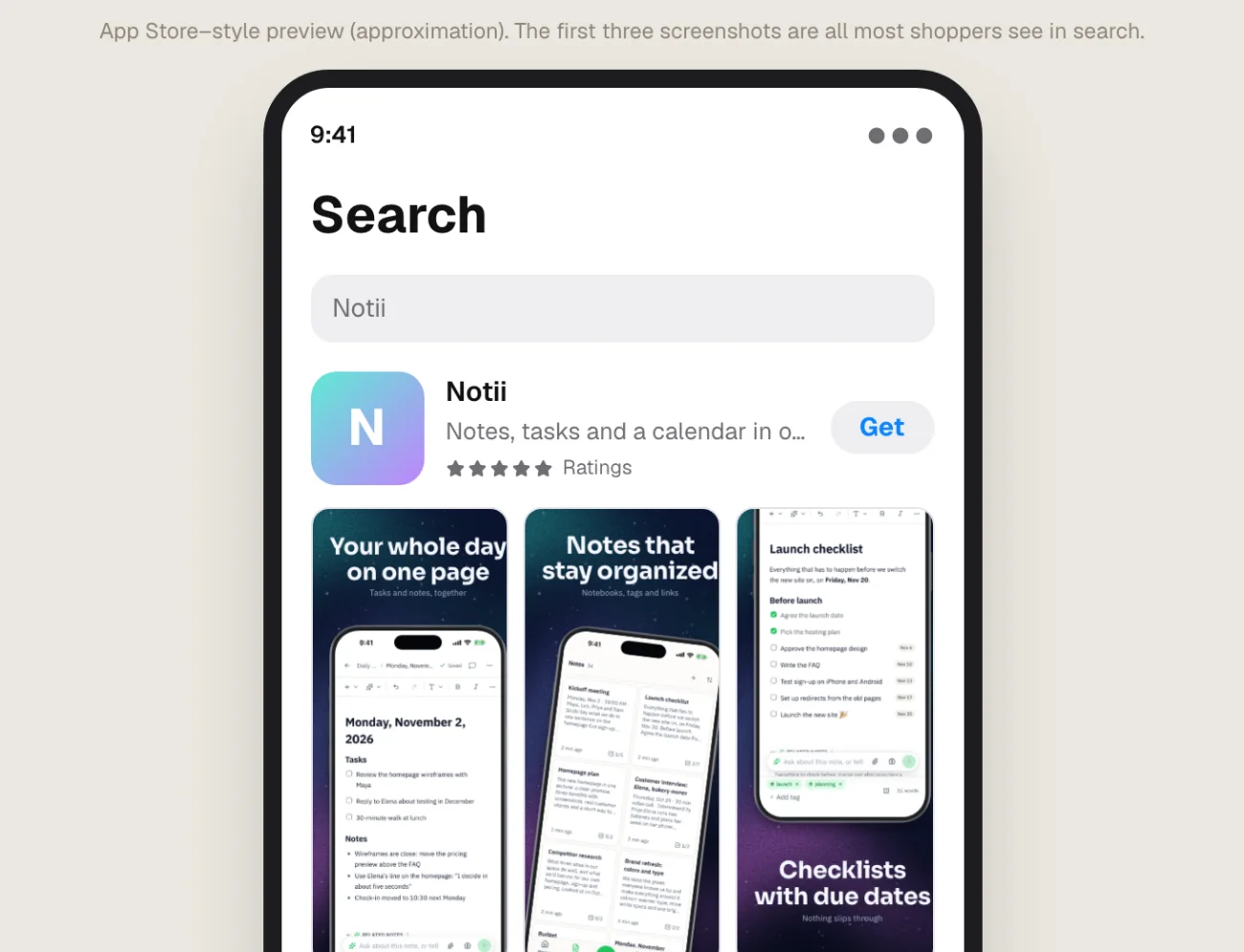
The App Store preview: a mock search result on a phone with the first three screenshots.

All features

Everything in Appscreensii.

Together

  • Live co-editingChanges appear as they happen. Everyone keeps their own undo and view.
  • PresenceNamed cursors, colored selections, “typing…” and avatars.
  • FollowClick an avatar to see what they see.
  • Pinned commentsOn a point or an element, with replies, resolve and reopen.
  • @mentionsType @ to pick someone. They get an email with a picture of the screen and a link to the comment.
  • Comment emailsOn replies and resolved comments, and you can turn them off in Settings.
  • RolesOwner, can edit and can view, enforced on the server. Viewers can still comment.
  • Email invitesUp to 20 at a time and 200 in a project, with a message. People sign in with the invited address.

Languages

  • 84 languages50 for the App Store and 83 for Google Play.
  • CaptionsSized to each box, at the right level of formality.
  • ScreenshotsApp text redrawn by AI, kept per language at the original size.
  • Right to leftCaptions in Arabic, Hebrew, Urdu and Persian.
  • One language onlyIts own positions, sizes and screenshots.
  • Translation gridEdit all languages at once, see overflows, and use CSV.

AI

  • MagicFrom captures to a designed set, in three steps you can steer.
  • Story and captionsOrder, roles, a headline with alternates, and its reasoning.
  • RewriteEight ways to rework a caption, previewed on hover.
  • Ask AIPlain-language edits, previewed on the canvas first.
  • Read screenshotsThe feature, benefit and issues in each capture.
  • Design directionsFour options with your screens, or more like one you like.
  • AI reviewA score out of 100 with up to eight findings and fixes.
  • AI backgroundsTen styles or free text, at 1K, 2K or 4K.

Bring your screenshots

  • Drag and dropFiles or whole folders, on any page. Or the file picker, or ⌘V.
  • Device detectionFrom pixel size, then file name, then shape.
  • Automatic setsEach capture goes to the right set, which is made if it's missing.
  • Capture orderSorted by the time in the file name, or by name.
  • Match to your screensPair a second device's captures by look or by order.
  • Replace in placeDrop on a screen to swap its screenshot and keep the design.
  • App Store importPaste a link to fill in name, description, category and icon.
  • Sample screensTry everything with a ready-made sample app.

Templates and layouts

  • 30 templatesPreviewed with your own screenshots, with filters and search.
  • Restyle any timeKeeps screenshots, captions and order. Optionally keeps your colors.
  • 20 layoutsChange one screen's layout without touching the rest.
  • Your own templatesSave a project as a template, or import and export template files.

Devices and 3D

  • 19 device framesiPhone, iPad, Pixel, Galaxy, Android tablets and Mac windows.
  • 5 stylesReal, Clay, Flat, Line or None, with 4 metal finishes.
  • Real 3D6 presets, plus turn, tilt, spin, lens, depth and light.
  • Tilt a whole setOne switch alternates angles across every device.
  • Clean status barA tidy 9:41 where the status bar is a solid color.
  • Screen optionsFill or fit, focal point, glare, cutout and screen background.
  • Your own bezelsImport a frame PNG. The screen area is found for you.

Backgrounds and color

  • 9 layer typesSolid, linear, radial, conic, aurora, mesh, image, pattern and blobs.
  • 11 patterns, 19 presetsDots, grain, rays, rings, halftone, sparkles and more.
  • PanoramaThe background spans the set, and a device can cross two screens.
  • Palette6 roles, generated from a brand color in 5 harmonies, or picked from your screenshots.
  • EyedropperPick a color from anywhere on screen, in Chromium browsers.
  • Image backgroundsUpload your own with fit, blur and dim.

Text and fonts

  • 78 fonts, 27 pairsSearchable by genre, each name in its own face.
  • Edit on the canvasDouble-click a caption and type.
  • EmphasisHighlight words with color, bold, a marker or an underline.
  • Full type controlsWeight, size, line height, spacing, alignment and case.
  • Shrink to fitWith a minimum size and a line limit. Headlines balance themselves.
  • Text stylesPush one caption's style to the theme, or reset it.

Elements and canvas

  • Add anythingHeadlines, labels, devices, callouts, your icon, images and shapes.
  • Magnified calloutsZoom into part of a screenshot, in a rounded or circle shape.
  • 2,015 icons, 1,652 emojiSearchable, recolorable icons, and emoji that look the same everywhere.
  • ShadowsColor, opacity, blur and offset on devices, callouts, images, icons and emoji.
  • GuidesSnapping to edges, centers, margins and other elements, plus safe areas.
  • Align and distributeTo the screen or to a selection.
  • Layers and groupsLock, hide and reorder. A group scales type, radii and shadows inside.
  • Copy across setsPaste between screens and sets, rescaled, or apply a style to all screens.
  • Undo200 labeled steps. An AI change counts as one.
  • Keyboard shortcutsFor the things you do all day. ⌘/ lists them.

Store checks

  • 30 checks22 rule-based, running as you edit, and 8 from AI after Magic reads your screens.
  • LegibilityOverflow, contrast, headlines too small at search size, too much text.
  • Store rulesRefused sizes, ranking words, prices, calls to action and other platforms' names.
  • Capture qualityUpscaled images, wrong shape, the wrong device, a steep 3D angle.
  • AI spotsReal-looking personal data, debug overlays, keyboards, and loading or login screens.
  • FixesOne click for many, such as contrast and a clean status bar. Errors stop an export.

Preview

  • App StoreA mock search result and carousel, light or dark.
  • Google PlayA mock listing with feature graphic and screenshots.
  • GalleryFinal quality, with a full-screen present mode.
  • Thumbnail testThe first three at search size, with a squint blur.
  • Before and afterA slider against the original capture.

Export

  • 28 sizes, 14 kinds of setIncluding landscape, iPhone Duo and store header images.
  • PNG or JPEGPNG is 8-bit RGB with no alpha, and the header is checked after encoding.
  • ZIP or a folderOr one PNG from a screen's menu. Folders need a Chromium browser.
  • FastlaneLay files out for deliver or supply, by store, or flat.
  • Upload guideComes with a checksum manifest, captions.csv and where each file goes.
  • Export for FigmaOne SVG per screen, with text still editable, and no plugin.
  • Project filesBack up or move a project as one .appscreensii file.

Your account

  • Google or emailSign in either way, and your work is there on any computer.
  • AutosaveSaved to your account within seconds, and retried if you go offline.
  • Your projectsSearch, sort, grid or list, and everything shared with you.
  • Project actionsRename, duplicate, export, leave, or delete with undo.
  • Light and darkFollow your system, or choose one.

Pricing

Design first. From $10 a month to export.

Try the whole thing before anyone asks for a card. Pay when your screenshots are ready to ship.

Design

$0

  • Live co-editing, comments and @mentions
  • AI translation, captions and designs
  • Every template, layout, device frame and font
  • Store checks and previews
  • Your project file, whenever you want it

Pro

$12 /mo

or

$10 /mo, billed annually

  • Everything in Design
  • Export every store size: ZIP, folder, PNG or layers for Figma
  • Covers everyone you invite to your projects
  • 7-day free trial when you first export. Cancel before it ends and you pay nothing.
Get started

Questions

Good to know.

What does it cost?

Designing costs nothing. Exporting images needs Pro, which is $12 a month, or $10 a month billed annually ($120 a year), and starts with a 7-day free trial. You add a card the first time you export, and it isn't charged for 7 days. Cancel before then in Settings and you pay nothing. People you invite to your project are covered by your plan, and your Appscreensii project file can always be exported.

What does Appscreensii make?

Screenshots for your App Store and Google Play listings, from your own captures: iPhone, iPad, Android phones and tablets, and Mac, plus App Store header and search images and Google's feature graphic.

Can my team work on it with me?

Yes. Invite people by email as editors or viewers, and your plan covers them. You'll see each other's cursors and selections live, and can pin comments to anything on a screen, @mention each other and resolve comments as you go. People get an email when they're mentioned or someone replies to them.

How good is the translation?

Captions are written for store listings and sized to fit. Screenshots are redrawn by an AI image model, which is told to keep numbers, prices and names, and your original stays if a redraw changes too much. It's AI, so check each language before you ship it. You can edit any caption or swap any screenshot for one language.

Can AI write the captions for me?

Yes. Press Magic and it reads your screenshots and writes a headline with alternates for each screen, plus a subheadline where it helps, sized to fit its box. You can edit any of it, ask for a rewrite, or write your own instead.

Will Apple and Google accept the files?

The sizes come from what App Store Connect and Google Play take, and sizes App Store Connect refuses are marked as such. PNGs are saved without alpha. Checks flag common problems, but approving your listing is always up to the store.

Do I need design skills?

No. Drop in your captures, pick a template or press Magic, and you have a finished set. If you do design, there's a full canvas with layers, groups, 3D and type controls underneath.

Does it upload to App Store Connect for me?

Not directly. You get a ZIP or folder with a guide to where each file goes, and it can lay files out for fastlane deliver and supply.

Can I use my own device frames and fonts?

You can import your own bezel as a PNG. Fonts come from the 78 families built in, and custom font upload isn't available.

Does it work on a phone or tablet?

The editor is made for a computer, in a current desktop browser. A few extras, the eyedropper and export to a folder, need a Chromium browser such as Chrome or Edge.

Where do my screenshots go?

They're stored privately in your account and read through signed links, and only the people you add to a project can open it. When you use an AI feature, the screenshots it needs are sent to our AI providers to do that work.

Your store page is the first thing people see.

Drop in your screenshots and see them in every template, right now.

Get started